Did you know that over 70% of modern TVs support external storage devices via USB? Yet, nearly 60% of users struggle with playback issues. This highlights the importance of understanding the technical aspects of connecting a storage device to your TV.
Whether you want to enjoy your favorite movie collection or store large video files, using an external hard drive can enhance your viewing experience. However, compatibility with your TV’s port and the right file format are crucial for seamless playback.
Many TVs support formats like FAT32, exFAT, or NTFS, but not all drives are plug-and-play. Understanding these details ensures your drive works smoothly with your TV. Let’s dive into the essentials to make this process hassle-free.
Key Takeaways
- Most modern TVs support external storage via USB ports.
- File formats like FAT32, exFAT, and NTFS are commonly compatible.
- Check your TV’s USB port capabilities for power and speed.
- Ensure your video files meet resolution and bitrate requirements.
- Partition drives larger than 2TB for better compatibility.
Understanding TV Compatibility and External Hard Drive Requirements
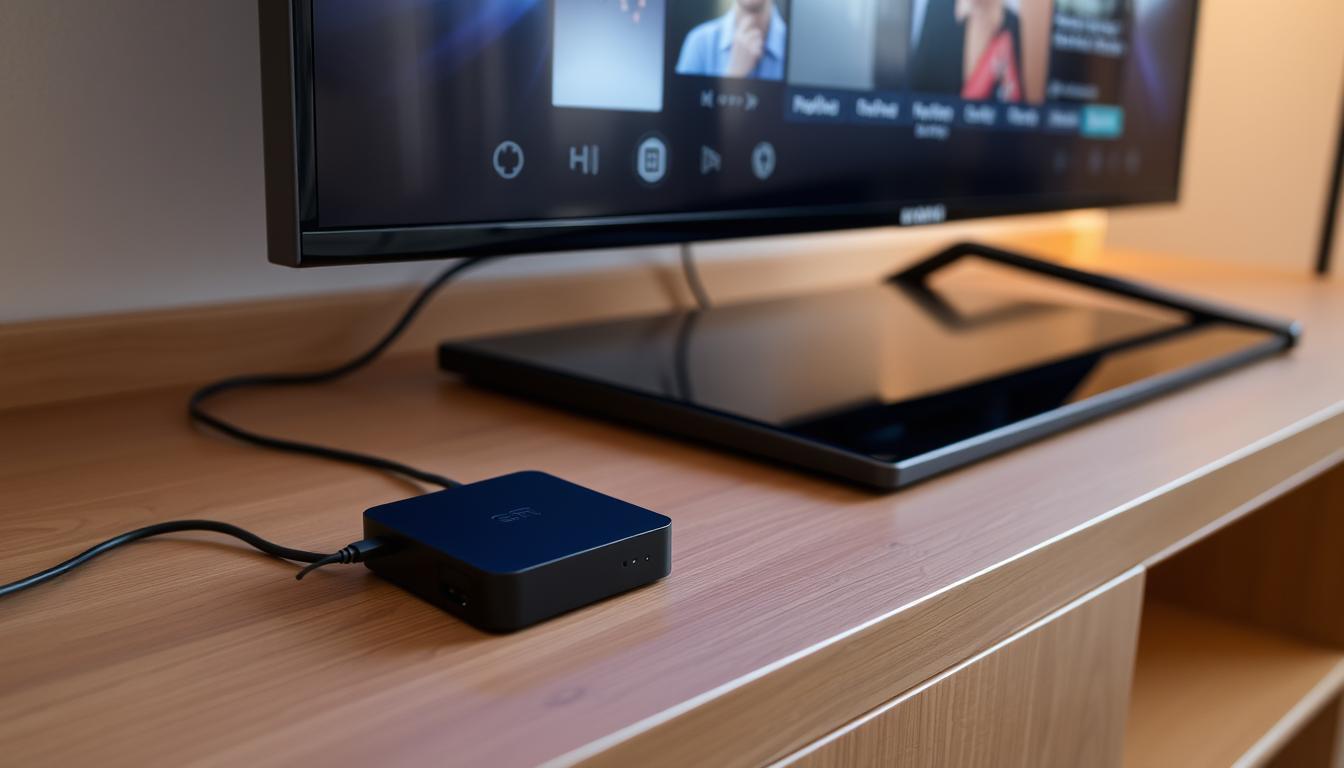
Not all TVs are created equal when it comes to supporting external storage devices. While most modern TVs come equipped with USB ports, the ability to connect an external hard drive depends on several factors. These include supported file formats, USB port capabilities, and power requirements.
Supported File Formats and TV Limitations
Your TV’s ability to read files from an external hard drive largely depends on the file system it supports. Most TVs work with FAT32, exFAT, or NTFS formats. However, older models may only recognize FAT32, which has a 4GB file size limit. This can cause issues when playing large video files.
Additionally, some TVs struggle with specific audio or video codecs. For example, while MP4 files are widely supported, other formats like MKV or AVI may not play correctly. Always check your TV’s manual for a list of compatible formats.
USB Port Capabilities and Power Needs
The type of USB port on your TV also plays a crucial role. USB 2.0 ports are common but slower, while USB 3.0 offers faster data transfer rates. If your device requires more power than the port can provide, it may not function properly.
For instance, larger HDD drives often need external power sources. Using a powered USB hub can resolve this issue. Always ensure your external hard drive is compatible with your TV’s USB port to avoid connectivity problems.
Preparing Your External Hard Drive for TV Connection
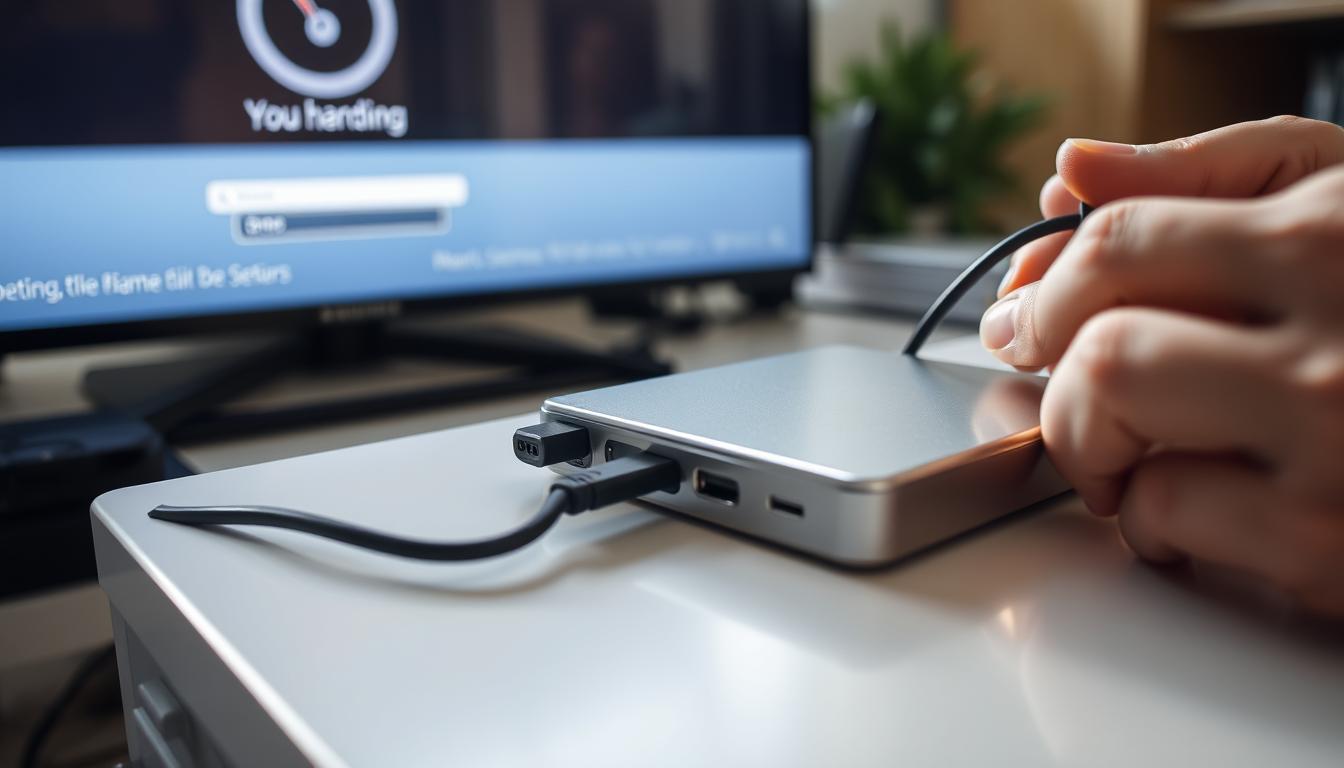
Properly setting up your external storage ensures smooth playback on your television. Before connecting, it’s crucial to format, partition, and convert files to meet your TV’s requirements. This preparation eliminates common issues and enhances your viewing experience.
Formatting, Partitioning, and File System Considerations
Formatting your disk is the first step. Most television models support FAT32, exFAT, or NTFS file systems. However, older TVs may only recognize FAT32, which has a 4GB file size limit. This can be problematic for larger video files.
If your disk exceeds 2TB, partitioning is recommended. Smaller partitions improve compatibility and ensure your TV can read the files. Here’s a quick comparison of file systems:
| File System | Max File Size | TV Compatibility |
|---|---|---|
| FAT32 | 4GB | High (older models) |
| exFAT | No limit | Moderate (modern TVs) |
| NTFS | No limit | Low (specific models) |
Always back up your data before formatting, as the process erases all content on the disk.
Converting Media Files to a TV-Friendly Format
Your TV may not support all video or audio formats. Converting files to a compatible format ensures seamless playback. Tools like WonderFox HD Video Converter Factory Pro simplify this process.
For example, if your computer stores files in MKV or AVI, convert them to MP4. This format is widely supported by most television models. Here’s a quick guide:
- Install a reliable conversion tool on your computer.
- Select the files you want to convert.
- Choose MP4 as the output format.
- Save the converted files to your disk.
This way, you can enjoy your media without worrying about compatibility issues.
How to Connect an External Hard Drive to Your TV
Understanding the best way to link your storage device to your television can save you time and frustration. Whether you use USB ports directly or rely on adapters, the method you choose impacts performance and compatibility. Let’s explore the pros and cons of each approach.

Direct Connection Versus Using an Adapter
Directly plugging your storage device into the TV’s USB port is often the simplest solution. Most modern TVs support USB 3.0, which ensures faster data transfer and smoother playback. However, older models with USB 2.0 may struggle with larger files.
In some cases, using an adapter like USB to HDMI can be beneficial. This is especially true if your TV lacks sufficient USB ports or power output. Adapters can also help bypass compatibility issues with certain file systems.
Here’s a quick comparison:
| Method | Pros | Cons |
|---|---|---|
| Direct USB | Simple setup, no extra hardware | Limited by TV’s USB capabilities |
| Adapter (USB to HDMI) | Bypasses compatibility issues | Requires additional hardware |
Always test your setup with a USB 3.0 flash drive to ensure optimal performance.
Troubleshooting Common Connection Issues
If your TV doesn’t recognize the storage device, start by checking the USB port. Ensure it’s functional by testing it with another device. Cables and adapters should also be inspected for damage.
For more advanced troubleshooting tips for Vizio TV owners, visit this resource. It provides detailed steps to resolve recognition issues.
Here are some additional steps to try:
- Format the drive to a compatible file system like FAT32 or exFAT.
- Ensure the TV’s firmware is up to date.
- Use the connect external settings on your TV to manually detect the device.
By following these guidelines, you can enjoy seamless playback and avoid common pitfalls.
Optimizing Playback and Streaming Performance
Streaming your favorite movies and shows directly from a storage device can transform your viewing experience. However, achieving seamless playback requires the right tools and setup. This section explores how to enhance performance using modern media players and overcome common network challenges.

Leveraging Media Players and Streaming Devices
Modern media players like the NVIDIA Shield Pro, Infuse, and Zidoo have become essential for optimizing playback. These devices support a wide range of file formats and ensure smooth streaming, even for high-resolution content. Over the years, users have praised their ability to bypass network congestion and reduce buffering.
Here’s why these devices stand out:
- NVIDIA Shield Pro: Known for its powerful processing and 4K HDR support, it’s ideal for demanding media libraries.
- Infuse: Offers seamless integration with Apple devices and supports advanced audio formats.
- Zidoo: Provides excellent playback for local media and supports Dolby Vision.
To set up these devices, follow these steps:
- Connect your flash drive or external storage to the media player.
- Install the necessary apps or software for media playback.
- Configure settings to prioritize high-quality streaming.
Managing Network and Wi-Fi Challenges
Network issues can disrupt your streaming experience, especially when accessing large media files. A stable Wi-Fi connection is crucial for uninterrupted playback. Here are some tips to optimize your network:
- Place your router closer to your TV or streaming device to improve signal strength.
- Use a dual-band router to reduce interference and increase bandwidth.
- Upgrade your internet plan for faster speeds, especially for 4K content.
“A well-configured network ensures smooth streaming, even for high-bitrate media files.”
If you still face issues, consider using a wired Ethernet connection. This eliminates Wi-Fi interference and provides consistent data throughput. Additionally, updating your router’s firmware can resolve compatibility problems and improve performance.
By leveraging advanced media players and optimizing your network, you can enjoy a seamless viewing experience. Whether you’re watching movies or streaming your favorite shows, these steps ensure your setup performs at its best.
Recording and Managing Media on Your TV
Recording your favorite shows directly to a storage device is easier than you think. Many modern TVs come with built-in recording functions, allowing you to save live broadcasts or schedule future recordings. Whether you’re using a 2.5” or 3.5” drive, understanding the setup process ensures smooth playback and data security.
Setting Up and Using TV Hard Drive Recording Functions
To start recording, connect your external drive to the TV’s USB port. Most TVs automatically format the drive, but some may require manual setup. Ensure your drive is compatible with the TV’s file system, typically FAT32 or exFAT. Larger drives may need partitioning for better performance.
Use the Electronic Program Guide (EPG) to schedule recordings. This feature lets you capture shows even when the TV is off. Always verify the datum being recorded to avoid missing your favorite episodes.
Here’s a quick comparison of drive types:
| Drive Type | Power Requirement | Compatibility |
|---|---|---|
| 2.5” HDD | USB-powered | Most TVs |
| 3.5” HDD | External power | Limited TVs |
“Using a compatible drive ensures seamless recording and playback.”
Exploring PC-Based Recording Alternatives
If your TV lacks recording features, PC-based alternatives offer flexibility. Software like Wondershare UniConverter allows you to capture and manage media files. These programs support various formats, ensuring high-quality video audio output.
To set up PC recording:
- Install the recording program on your computer.
- Connect your TV tuner or capture device to the PC.
- Configure settings for optimal recording quality.
PC-based recording also allows for advanced editing and annotations. This is ideal for users who want to customize their media library. For troubleshooting issues with external drives, check out this resource.
By choosing the right method, you can enjoy a seamless recording experience. Whether you use your TV or a computer, these steps ensure your favorite shows are always within reach.
Conclusion
Setting up your storage device for TV playback doesn’t have to be complicated. By following the right steps, you can avoid unnecessary hassle and enjoy seamless viewing. First, make sure your drive is formatted correctly—FAT32 or exFAT are widely supported. Understanding your TV’s capabilities, like USB port power and file format compatibility, is also crucial.
Choosing the right box or adapter can make a big difference. For example, a USB 3.0 port ensures faster data transfer, while a powered hub can handle larger drives. If issues arise, troubleshooting tips like checking cables or updating firmware can save you time.
Finally, use this guide as a step-by-step card to simplify the process. Whether you’re streaming movies or recording shows, proper preparation ensures optimal performance. With these tips, you’ll transform your TV into a powerful media hub.
FAQ
What file formats are supported when connecting an external hard drive to a TV?
Most TVs support common formats like MP4, MKV, and AVI for video, and MP3 or AAC for audio. However, check your TV’s manual for specific compatibility details.
Can I use any external hard drive with my TV?
Not all external hard drives are compatible. Ensure your device uses a USB port and is formatted in a file system your TV recognizes, such as FAT32 or NTFS.
Why won’t my TV recognize the external hard drive?
This issue could stem from incompatible file formats, insufficient power supply, or an unsupported file system. Try reformatting the drive or using a powered USB hub.
Do I need to format my external hard drive before connecting it to the TV?
Yes, formatting ensures compatibility. Use FAT32 for universal support or NTFS for larger file sizes, but verify your TV’s requirements first.
Can I watch movies directly from an external hard drive on my TV?
Absolutely. Connect the drive to the TV’s USB port, navigate to the media player, and select your desired movie for playback.
What should I do if my TV doesn’t have a USB port?
Use an HDMI adapter or a media streaming device like a Roku or Chromecast to bridge the connection between your external hard drive and TV.
How can I improve playback performance when streaming from an external hard drive?
Ensure your media files are in a TV-friendly format, use a high-speed USB port, and avoid running multiple apps simultaneously to optimize performance.
Can I record TV shows directly to an external hard drive?
Some TVs support this feature. Check your TV’s settings for recording options or use a PC-based alternative for more flexibility.
What’s the best way to manage media files on an external hard drive for TV use?
Organize files into folders by type (movies, TV shows, music) and ensure they’re named clearly for easy navigation on your TV’s media player.
Is it possible to connect multiple external hard drives to a TV?
Yes, but you may need a USB hub to connect multiple drives. Ensure your TV supports this setup and that the hub provides adequate power.