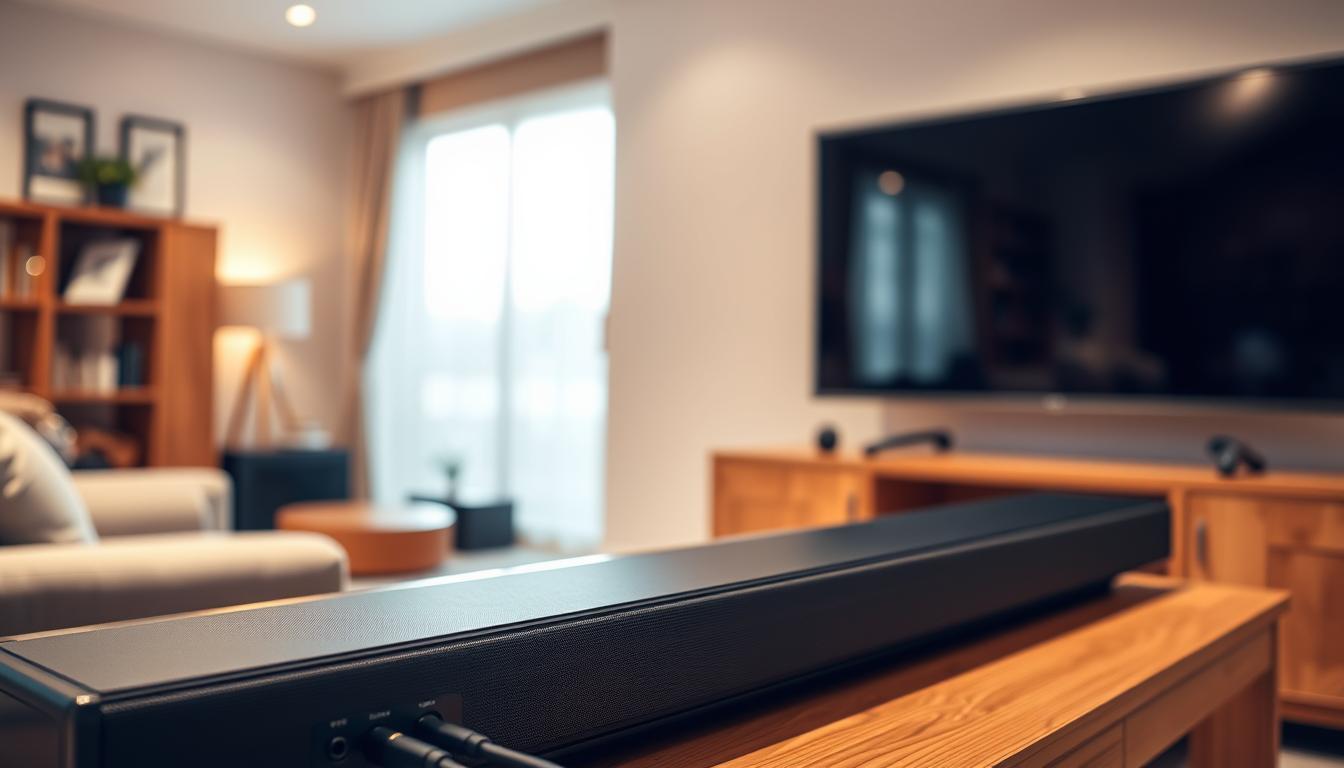

Did you know that 70% of modern TVs support HDMI ARC/eARC functionality? This feature allows seamless audio transfer between your TV and soundbar, enhancing your home entertainment experience. Setting up a soundbar while keeping your TV speakers active can elevate your audio quality without sacrificing convenience.
This guide is designed to help you get started quickly using the latest technology. Whether you’re using an HDMI or optical cable, you’ll learn how to create a dual audio system that combines the rich sound of a soundbar with the familiarity of your TV’s built-in speakers.
Modern connections like HDMI ARC simplify the process, offering better functionality and control. You’ll also discover practical tips and troubleshooting advice to ensure your setup is seamless from the start. Let’s dive in and explore how to make the most of your audio setup at home.
Key Takeaways
- HDMI ARC/eARC is supported by 70% of modern TVs for easy audio transfer.
- Dual audio systems enhance sound quality while keeping TV speakers active.
- HDMI and optical cables are the most reliable connection options.
- Modern technology simplifies the setup process for soundbars.
- Practical tips ensure a seamless and trouble-free installation.
Understanding Your Home Audio Setup
Modern home audio setups offer a range of connection options to enhance your listening experience. Whether you’re setting up a new system or upgrading an existing one, understanding the available methods is essential. Each connection type has unique benefits, and choosing the right one can significantly improve your audio quality.

Exploring Connection Options and Their Benefits
HDMI cables are a popular choice for modern setups. They transmit both video and high-quality audio signals, making them versatile. Features like Anynet+ and Auto Power Link simplify control when paired with compatible devices. For example, Anynet+ activates automatically when connecting via HDMI ARC, streamlining your experience.
Optical cables are another reliable option. They are simple to use and provide a stable connection for audio transmission. Unlike HDMI, optical cables focus solely on audio, making them ideal for setups where video isn’t a concern. Auto Power Link, available with optical connections, ensures seamless integration with Samsung TVs.
Why Retaining TV Speakers Enhances Your Experience
Keeping your built-in speakers active while using a soundbar can create a balanced audio experience. This dual setup ensures consistent sound quality, especially when switching between different sources. For instance, built-in speakers can enhance dialogue clarity, while the soundbar delivers deeper bass and richer tones.
Some soundbar models offer specific mode settings to optimize performance with both speakers active. This feature allows you to customize the way sound is distributed, ensuring an immersive experience tailored to your preferences.
| Connection Type | Benefits | Best Use Case |
|---|---|---|
| HDMI | Transmits video and audio, supports ARC/eARC | Modern TVs and soundbars |
| Optical Cable | Simple, reliable, focuses on audio | Audio-only setups |
Connecting Your Soundbar with HDMI and Optical Cables
Achieving great sound quality starts with the right connections. Whether you’re using an HDMI cable or an optical cable, each method has its advantages. This guide will walk you through the steps to ensure your setup is seamless and optimized for the best audio experience.

HDMI ARC Connection and Auto Power Link Features
Using an HDMI cable with ARC (Audio Return Channel) simplifies your setup. Connect the HDMI OUT port on your soundbar to the HDMI (ARC) port on your TV. This method allows two-way communication, so you can control both devices with one remote.
Enable Auto Power Link for added convenience. This feature automatically syncs your soundbar and TV, turning them on and off together. Ensure your TV’s HDMI CEC function is activated for this to work. For detailed steps, check out this guide on connecting a Yamaha soundbar to a Samsung.
Optical Cable Setup and Best Practices
If you’re using optical cables, start by removing the plastic protector caps from both ends. Connect one end to the optical jack on your soundbar and the other to the port on your TV. Select the correct input on your TV to ensure the audio signal is routed properly.
Set your soundbar to D.IN mode for optimal performance. This ensures the device receives the audio signal correctly. Keep the cable length under 5 meters to avoid signal loss.
Troubleshooting Common Connection Issues
If you encounter issues, start by checking the port connections. Ensure the HDMI cable is securely plugged into the correct jack. Verify that the HDMI connection is working by testing another cable if necessary.
For optical setups, confirm the cable is not damaged and the port is clean. If sound is still not coming through, check your TV’s audio settings to ensure the output is set to the external speaker. These simple steps can resolve most common problems.
How to Connect a Soundbar and Keep the TV Speakers Active
Dual audio systems combine the best of both worlds for immersive sound. By keeping your built-in speakers active while using a soundbar, you can enjoy balanced audio that enhances every viewing session. This guide walks you through the process step-by-step, ensuring a seamless setup.
Step-by-Step Configuration Guide
Start by connecting your soundbar to your TV using an HDMI or optical cable. For HDMI, plug the cable into the HDMI (ARC) port on your TV and the HDMI OUT port on your soundbar. If you’re using an optical cable, remove the plastic caps and connect it to the respective ports on both devices.
Next, enable Auto Power Link or Anynet+ on your TV. Hold the directional button for 2 seconds to activate this feature. This ensures your soundbar and TV turn on and off together, saving you time and effort.
Finally, select the correct input mode on your soundbar. For HDMI, choose the HDMI ARC option. For optical connections, set your soundbar to D.IN mode. This ensures the system receives the audio signal correctly.
Ensuring Dual Playback: TV Speakers and Soundbar
To verify dual playback, check your TV’s audio settings. Navigate to the Speakers option and select both TV Speaker and Audio System. This allows sound to play through both devices simultaneously.
If you encounter issues, reset both your TV and soundbar. This resolves most syncing problems. Additionally, ensure your HDMI CEC function is activated for seamless control.
Here’s a quick comparison of connection types:
| Connection Type | Benefits | Best Use Case |
|---|---|---|
| HDMI | Supports ARC/eARC, two-way control | Modern TVs and soundbars |
| Optical Cable | Simple, reliable, audio-only | Older TV models |
By following these steps, you can enjoy a rich, balanced audio experience. Dual playback ensures every sound is crisp and clear, whether you’re watching movies or listening to music.
Conclusion
Enhancing your home audio setup is simpler than you might think. By following the steps outlined, you can enjoy a seamless dual audio experience that combines the power of a soundbar with the familiarity of your built-in speakers. Whether you choose HDMI or optical connections, each option offers unique benefits tailored to your needs.
For families, this setup ensures everyone enjoys crisp, balanced sound during movie nights or casual viewing. Remember to check your TV’s settings and enable features like Auto Power Link for effortless control. A quick tip: always verify the input mode on your soundbar to ensure proper audio routing.
Stay updated with the latest news on audio technology to explore new options as they emerge. If issues arise, don’t hesitate to explore additional solutions—there’s always a way to optimize your system. Take action today and transform your home audio experience for the entire family.
Ready to elevate your sound? Start now and enjoy premium audio without the hassle. Your perfect setup is just a few steps away.
FAQ
What is the best way to connect a soundbar to my TV?
The HDMI ARC connection is often the best option because it supports high-quality audio and allows for seamless control of your soundbar using your TV remote. If your TV doesn’t have an HDMI ARC port, an optical cable is a reliable alternative.
Can I use both my TV speakers and soundbar at the same time?
Yes, but it depends on your TV model and settings. Some TVs allow dual playback, while others may require you to disable the internal speakers when using a soundbar. Check your TV’s audio settings to confirm.
What is HDMI ARC, and why is it beneficial?
HDMI ARC (Audio Return Channel) simplifies your setup by sending audio from your TV to the soundbar through a single cable. It also enables features like auto power link, where the soundbar turns on automatically with your TV.
How do I set up a soundbar using an optical cable?
Connect one end of the optical cable to your TV’s digital audio out port and the other to the soundbar. Ensure the soundbar is set to the correct input mode, and adjust your TV’s audio settings to output sound via the optical connection.
What should I do if my soundbar isn’t producing sound?
First, verify that all cables are securely connected. Ensure the soundbar is powered on and set to the correct input mode. If using HDMI ARC, check your TV’s settings to confirm the audio output is set to the soundbar.
Does my soundbar need to be the same brand as my TV?
No, soundbars are compatible with most TV brands. However, using the same brand may offer additional features or easier integration, such as syncing with the TV remote or app controls.
Can I connect multiple devices to my soundbar?
Yes, many soundbars have multiple input ports, such as HDMI, optical, and auxiliary. This allows you to connect devices like gaming consoles, Blu-ray players, or streaming boxes directly to the soundbar.
What is the difference between HDMI and optical connections?
HDMI supports higher audio quality and additional features like HDMI ARC, while optical cables transmit digital audio but lack advanced functionalities. Both are reliable, but HDMI is generally preferred for modern setups.