Did you know that 100% of users in online discussions face challenges when trying to connect their soundbars to TVs without HDMI or optical ports? This common issue often stems from older TV models lacking modern audio outputs. However, there’s good news: even legacy TVs can still deliver enhanced sound quality when paired with the right equipment.
Many older TVs, including CRT models, feature analog audio outputs like RCA or coaxial. These can be connected to modern soundbars using adapters or specific cables. This setup not only boosts audio quality but also enhances bass, transforming your viewing experience.
This guide will walk you through the various audio output options available on older TVs. You’ll learn about essential cables like RCA, optical, and 3.5mm adapters. We’ll also cover how to match your TV’s output with your soundbar’s input ports and adjust settings for optimal performance.
By the end of this article, you’ll have a clear understanding of how to achieve a seamless connection, ensuring your home audio setup is both professional and effective.
Key Takeaways
- Older TVs can still connect to modern soundbars using legacy audio cables.
- Enhanced sound quality and bass are achievable with the right setup.
- RCA, optical, and 3.5mm adapters are essential for compatibility.
- Matching TV output with soundbar input ports is crucial.
- Adjusting TV settings ensures optimal audio performance.
Understanding Your TV’s Audio Output Options
Understanding your TV’s audio ports is the first step to enhancing your audio experience. Older TVs, including CRT models, often feature legacy outputs like RCA, optical, or analog. These ports can still deliver quality sound when paired with the right equipment.
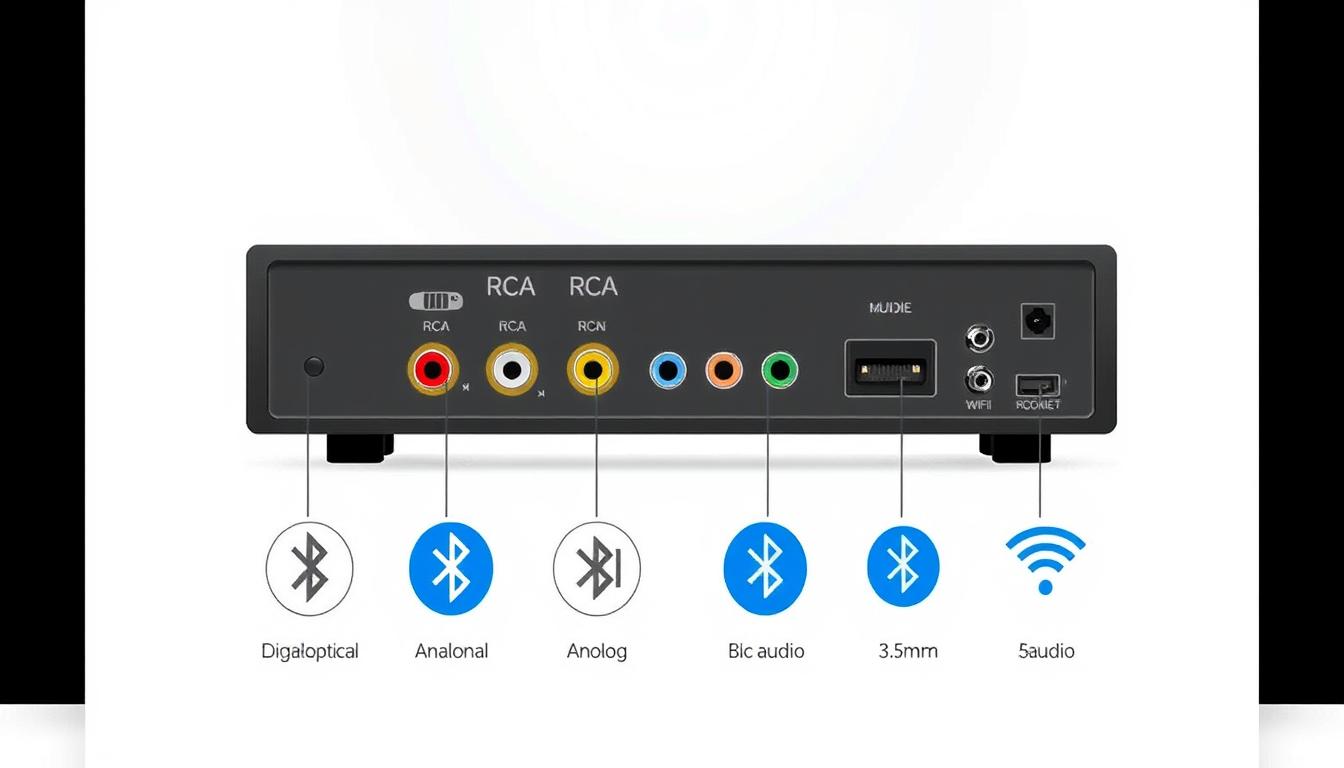
Identifying Available Outputs
Start by checking the back panel of your TV. Look for RCA jacks, typically color-coded red and white, which are common on older models. These analog audio outputs are easy to identify and widely compatible with modern soundbars.
Another option is the optical port, a squarish opening with two notches. This audio output supports compressed 5.1- and 7.1-channel sound, making it ideal for high-quality audio setups. If your TV lacks these, a 3.5mm jack, often labeled “AUX In,” can also serve as a reliable connection point.
Legacy Audio Input Methods
Many older TVs rely on stereo outputs to deliver sound. While these methods may seem outdated, they can still produce impressive results. For example, RCA cables are simple to use and widely available, while optical connections offer enhanced clarity for surround sound.
However, each method has its limitations. RCA cables may not support advanced audio formats, and optical ports require specific cables. Despite these challenges, these legacy connections remain a viable option for pairing with contemporary soundbars.
“Legacy audio outputs may not be as advanced as HDMI, but they still provide a solid foundation for quality sound.”
This section lays the groundwork for selecting the right cables and settings. By understanding your TV’s audio output options, you can ensure a seamless connection and elevate your home entertainment experience.
How to Connect a Soundbar Without HDMI
Achieving great sound quality is possible with the right cables and adapters. Even if your TV lacks HDMI, there are several ways to connect your soundbar and enjoy enhanced audio. This section will guide you through the essential tools and steps needed for a seamless setup.
Required Cables and Adapters
To connect your soundbar without HDMI, you’ll need specific cables and adapters. The most common options include optical digital audio cables, RCA connectors, and RCA-to-3.5mm Y-adapter cables. Each serves a unique purpose depending on your TV’s audio output.
Optical cables are ideal for delivering compressed 5.1- and 7.1-channel sound, making them perfect for surround sound setups. RCA connectors, on the other hand, are great for analog audio outputs found on older TVs. If your TV has RCA ports but your soundbar uses a 3.5mm jack, a Y-adapter cable will bridge the gap.
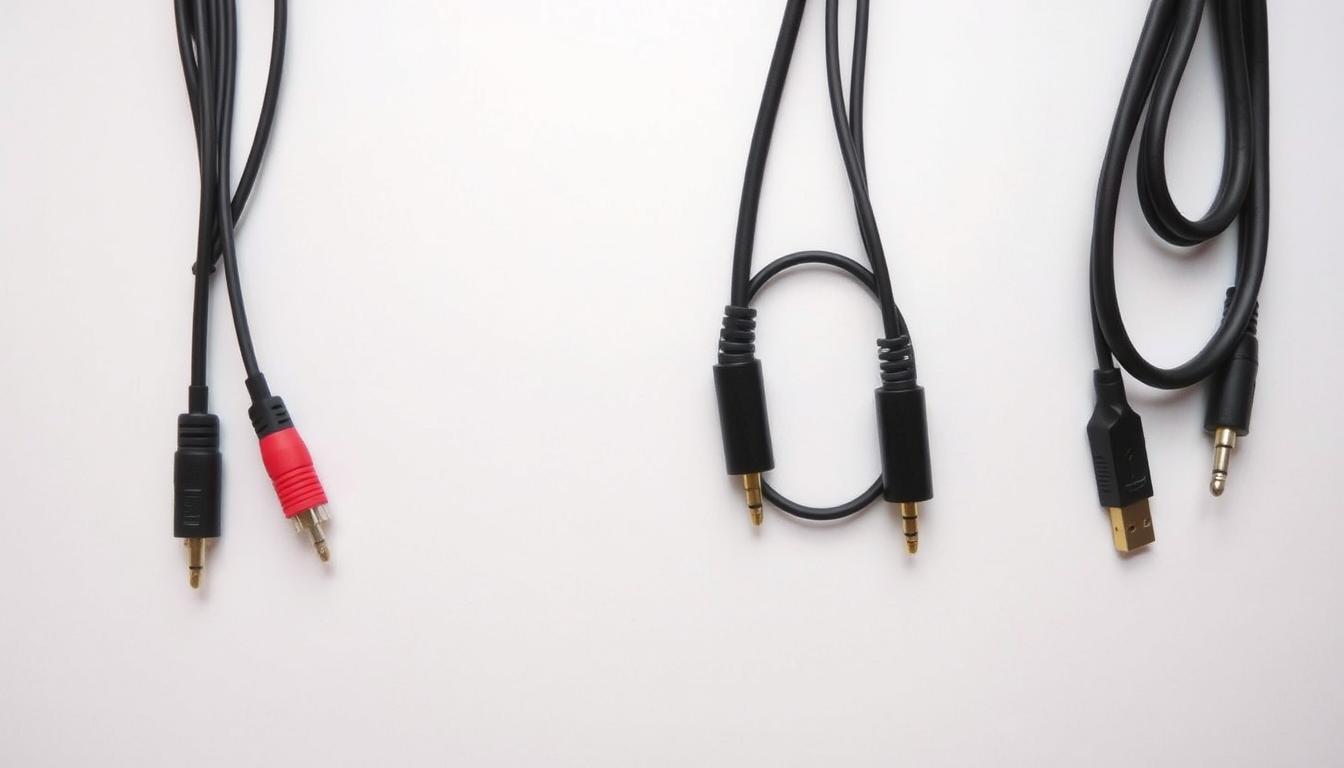
| Type | Best For | Compatibility |
|---|---|---|
| Optical Cable | High-quality surround sound | Modern soundbars with optical input |
| RCA Cable | Analog audio output | Older TVs with RCA ports |
| RCA-to-3.5mm Y-adapter | Connecting RCA outputs to 3.5mm jacks | Soundbars with AUX input |
Step-by-Step Connection Process
Follow these steps to connect your soundbar without HDMI:
- Identify your TV’s audio output ports (optical, RCA, or 3.5mm).
- Choose the appropriate cable or adapter based on your TV’s output and your soundbar’s input.
- Connect one end of the cable to your TV and the other to your soundbar.
- Power on both devices and switch your soundbar to the correct input (e.g., AUX or TV).
- Adjust your TV’s audio settings to ensure the soundbar receives the signal.
Proper cable management is crucial. Avoid sharp bends in optical cables to prevent damage. If you encounter issues, consult your TV’s manual for specific settings like fixed vs. variable output.
“The right cables and settings can transform your audio experience, even without HDMI.”
By following these steps, you’ll enjoy enhanced sound quality and a professional setup. Troubleshooting tips include checking connections, verifying input settings, and ensuring your TV’s audio output is correctly configured.
Essential Tips for an Optimal Home Audio Setup
Maximizing your home audio setup doesn’t require the latest technology. With the right approach, even older TVs can deliver premium sound quality. This section provides actionable tips to help you select the right soundbar, adjust settings, and troubleshoot common issues.
Selecting the Right Soundbar for Your TV
Choosing a soundbar that matches your TV’s audio output is crucial. Start by identifying your TV’s available ports, such as RCA, optical, or 3.5mm. Ensure the soundbar you select has compatible inputs.
Consider features like virtual surround sound or 3D audio. These technologies enhance the listening experience, even without HDMI. Brands like Sony, Samsung, and Vizio offer models with these capabilities.
Adjusting TV and Soundbar Settings for Best Performance
Proper settings ensure optimal audio performance. Start by disabling your TV’s built-in speakers. This directs all sound to the soundbar, improving clarity and volume.
Adjust the audio output settings on your TV. Switch from fixed to variable volume for better control. On the soundbar, select the correct input source and fine-tune the bass and treble levels.
Troubleshooting Common Connection Issues
If you encounter issues, start by checking the connections. Ensure cables are securely plugged into the correct ports. Verify that the soundbar is set to the right input.
For no sound or out-of-sync audio, consult your TV’s manual. Some models require specific settings for external speakers. If using an optical cable, avoid sharp bends to prevent damage.
| Issue | Solution |
|---|---|
| No Sound | Check connections and input settings. |
| Out-of-Sync Audio | Adjust TV audio delay settings. |
| Low Volume | Switch to variable volume output. |
By following these tips, you can achieve a superior audio experience. Fine-tuning your setup ensures that your soundbar delivers the best performance, regardless of your TV’s age.
Conclusion
Enhancing your audio experience is achievable, even without an HDMI port. By identifying your TV’s output ports and selecting the right cable, you can seamlessly connect your soundbar. Legacy options like RCA and optical connections remain effective for delivering quality sound.
Matching your TV’s audio output with the correct port on your device ensures a smooth setup. Adjusting settings on both your TV and soundbar further optimizes performance. Troubleshooting steps, such as verifying connections and input sources, can resolve common issues.
A well-configured home audio setup transforms your viewing experience. Experiment with settings to enjoy richer sound. For more detailed guidance, explore our guide on connecting devices without HDMI.
Following these steps ensures a successful and satisfying connection. Upgrade your audio setup today and enjoy a premium listening experience.
FAQ
What are the alternative audio output options if my TV doesn’t have an HDMI port?
If your TV lacks an HDMI port, you can use RCA, optical, or analog audio outputs. These legacy options allow you to connect a soundbar or other audio devices effectively.
Which cables are needed to connect a soundbar without HDMI?
Depending on your TV’s available outputs, you may need an optical cable, RCA cables, or a 3.5mm audio cable. Adapters like RCA-to-3.5mm or optical-to-analog converters can also be useful.
How do I connect a soundbar to an older TV using analog audio?
Use a 3.5mm audio cable or RCA cables to connect the soundbar to your TV’s analog audio output. Ensure the soundbar is set to the correct input source for the connection.
Can I use an optical cable to connect my soundbar?
Yes, if your TV has an optical audio output, use an optical cable to connect it to the soundbar. This method provides high-quality digital audio transmission.
How do I adjust the volume when using a non-HDMI connection?
Use your TV’s remote to control the volume or adjust it directly on the soundbar. Some setups may require you to disable the TV’s internal speakers for proper sound output.
What should I do if there’s no sound after connecting the soundbar?
Check the audio output settings on your TV and ensure the correct input source is selected on the soundbar. Verify all cables are securely connected and undamaged.
Can I connect a soundbar to a TV with only RCA outputs?
Yes, use RCA cables to connect the TV’s audio output to the soundbar’s RCA input. If the soundbar lacks RCA inputs, use an RCA-to-3.5mm adapter.
Is it possible to use a soundbar with a TV that has no digital audio outputs?
Yes, analog audio outputs like RCA or a 3.5mm jack can be used to connect the soundbar. Ensure the soundbar supports analog input for compatibility.
How do I ensure the best audio performance with a non-HDMI connection?
Select a soundbar that matches your TV’s audio output capabilities. Adjust the TV’s audio settings to output sound through the connected device and optimize the soundbar’s settings for clarity and balance.