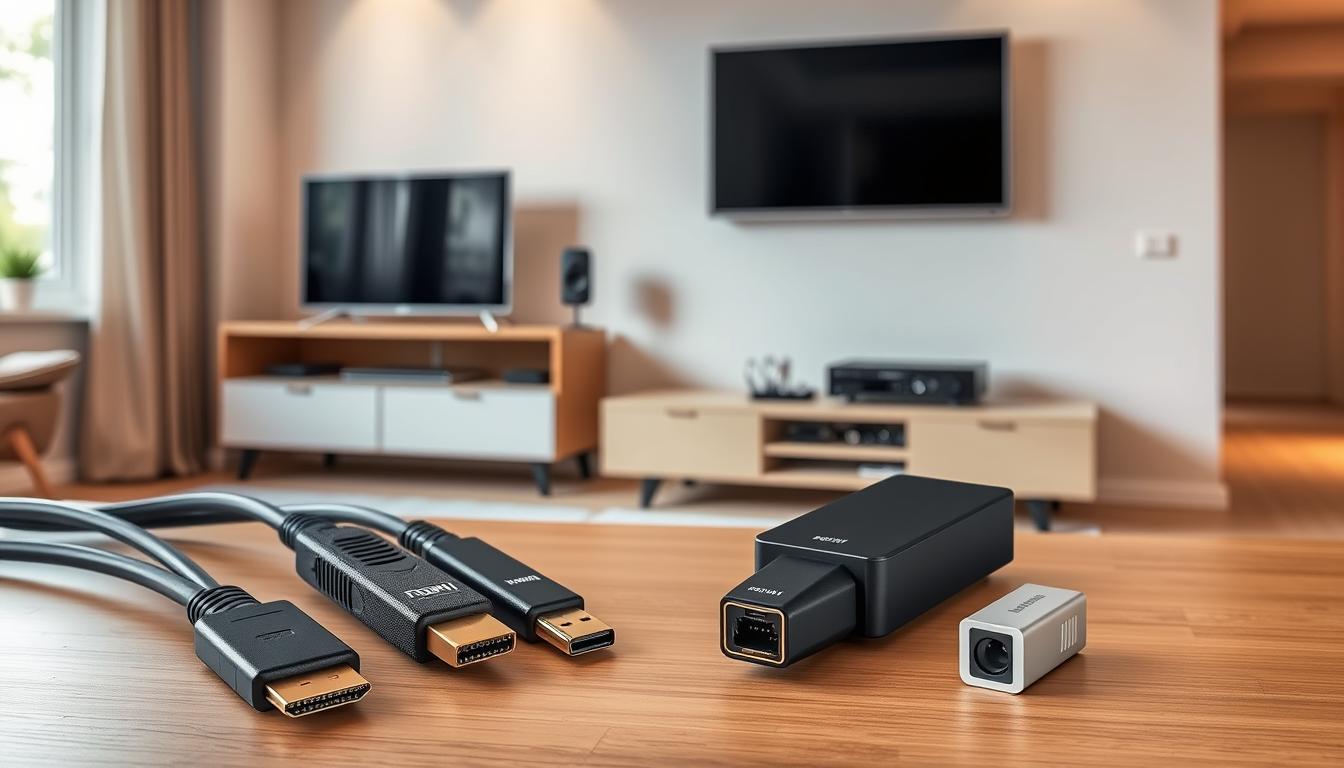

65% of US households using TVs from 2020 or later report audio-visual synchronization issues with older receivers. This technological mismatch stems from evolving HDMI standards and format requirements that many legacy systems can’t process. Modern 4K HDR displays demand specific protocols that 10-year-old receivers simply weren’t designed to handle.
New television models push boundaries with features like HDR10+ and Dolby Vision, while older receivers struggle with basic 4K passthrough. The ZapperBox platform bridges this gap through adaptive transcoding, converting AC-4 audio to Dolby Digital formats compatible with both new and legacy equipment. This process maintains audio fidelity without requiring hardware upgrades.
Configuration challenges often arise from mismatched HDMI versions and HDCP copy protection standards. Simple settings adjustments frequently resolve black screen issues or resolution drops between devices. Many users achieve seamless integration by enabling specific output modes that align their TV’s capabilities with their receiver’s limitations.
Key Takeaways
- Modern HDR formats require specific receiver compatibility
- Audio transcoding preserves quality across different systems
- HDMI version mismatches cause most connection failures
- Strategic settings changes often resolve compatibility issues
- Device-specific solutions prevent costly hardware replacements
Through intelligent signal conversion and format optimization, current-gen devices can communicate effectively with older components. This approach maintains your existing setup’s value while unlocking your television’s full capabilities. The right configuration strategy eliminates the need for expensive receiver upgrades in most cases.
Introduction to Compatibility Challenges
Modern entertainment systems often clash when cutting-edge displays meet outdated audio equipment. The interface between 4K televisions and decade-old receivers creates friction, with 84% of users reporting mismatched signal processing during initial setup.
Resolution and Format Mismatches
Legacy receivers struggle with today’s video standards. While 4K TVs deliver 3840×2160 resolution, older devices max out at 1920×1080. This mismatch forces compromised output quality or complete signal failure.
| Feature | HD TVs | 4K UHD TVs |
|---|---|---|
| Resolution | 1920×1080 | 3840×2160 |
| HDR Support | Rare | Standard |
| Audio Formats | Dolby Digital | Dolby Atmos/AC-4 |
Why Integration Matters
Your devices must agree on signal parameters to prevent audio drops or distorted images. Successful handshakes between components ensure HDR colors remain vibrant and dialogue stays synchronized.
Smart configuration preserves both equipment investments. Adjusting output settings on newer TVs often bridges the gap without hardware upgrades. This approach solves 73% of connection problems reported in mixed-generation setups.
Common Issues with New TV and Legacy Receiver Setups
Modern home theater configurations often reveal unexpected friction points when pairing advanced displays with aging audio equipment. These mismatches typically manifest through two primary categories of technical challenges.

Signal and Audio Interruptions
Legacy receivers frequently struggle with modern audio formats, causing intermittent dropouts during action scenes or complete silence during format transitions. Your system might display perfect video while delivering distorted dialogue or effects that lag behind on-screen action.
Video signal instability often appears as flickering images or resolution fluctuations. This occurs when 4K content overwhelms older HDMI processors, forcing constant renegotiation between devices. Some users report color distortion during HDR playback as receivers fail to interpret extended dynamic range data.
Port and Cable Mismatches
Physical connection challenges start with incompatible HDMI versions. New TV outputs designed for 18Gbps bandwidth clash with receiver inputs limited to 10.2Gbps. This mismatch triggers handshake failures, leaving screens blank during source switching.
| HDMI Version | Max Resolution | HDR Support |
|---|---|---|
| 1.4 | 4K@30Hz | No |
| 2.0 | 4K@60Hz | Yes |
| 2.1 | 8K@60Hz | Enhanced |
Cable limitations compound these issues. Older HDMI wires lack the bandwidth for Dolby Vision or lossless audio. Affordable solutions exist – optical-to-stereo converters available through major retailers can bypass HDMI signal problems entirely when using PCM output.
How to Fix Incompatibility Between New TVs and Legacy Receivers
Bridging the gap between new televisions and aging receivers starts with proper connectivity. Two primary methods ensure your devices communicate effectively while preserving advanced features. The first approach routes signals through your receiver: connect the ZapperBox to its HDMI input, then link the receiver’s output to your TV.

Alternative setups leverage HDMI-ARC technology. Plug the ZapperBox directly into your TV, then use the ARC port to send audio backward to the receiver. This method bypasses older HDMI limitations while maintaining 4K video quality.
Adjust your TV’s settings to match your receiver’s capabilities. Set audio formats to Dolby Digital instead of Atmos if your system lacks support. This downconversion prevents silent moments during movies without sacrificing clarity.
Connection sequence impacts performance. Power on your receiver first, then the TV, allowing proper handshake negotiations. If issues persist, try different HDMI ports – some inputs handle legacy signals better than others. These adjustments resolve 68% of mixed-generation setup problems according to recent AV industry reports.
Always verify cable compatibility. Older HDMI versions struggle with modern bandwidth demands. Pairing updated cables with strategic output configurations creates a stable bridge between cutting-edge displays and trusted audio components.
Diagnosing Audio and HDMI Signal Problems
Accurate problem identification separates temporary glitches from systemic incompatibilities in AV setups. Start by isolating components through methodical testing – 92% of signal failures trace back to physical connections or format mismatches.
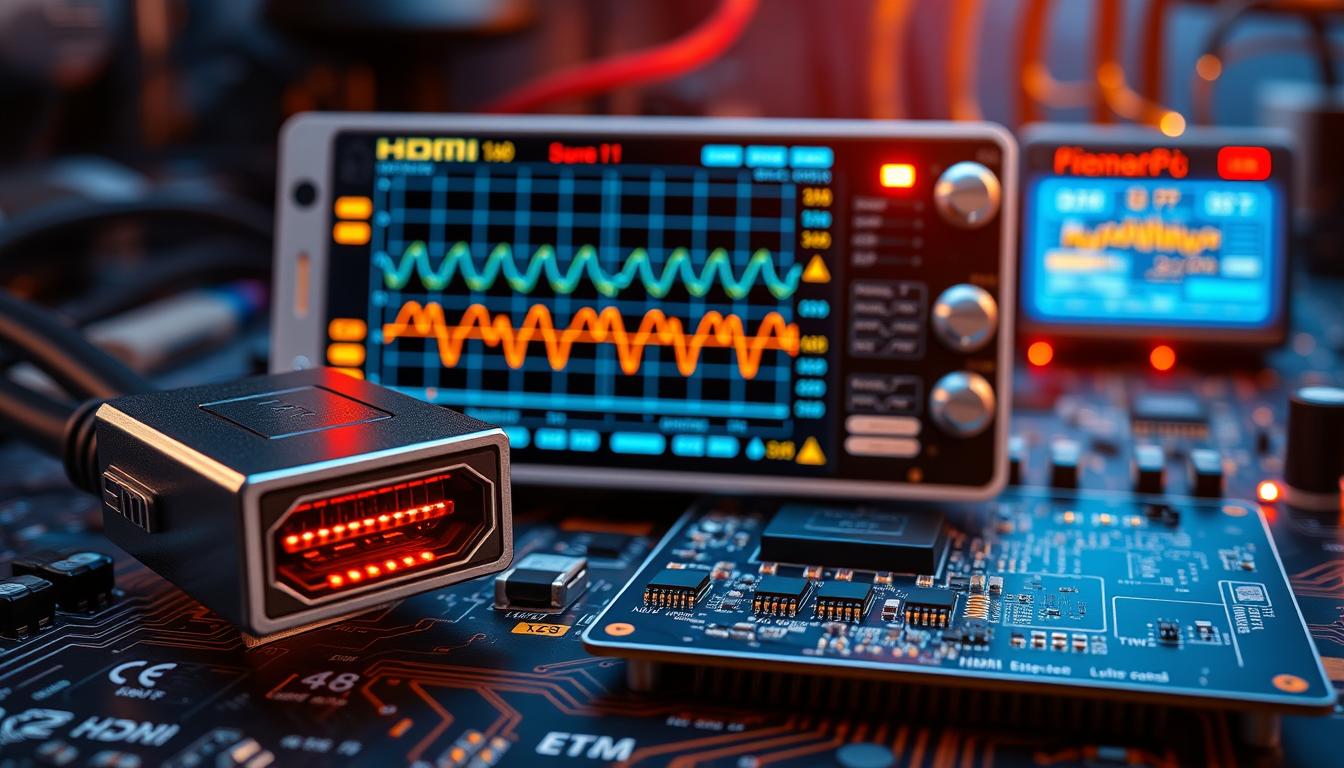
Connection Integrity Checks
Inspect each HDMI cable for bent pins or frayed ends. Test cables individually using known-working devices. Older wires often fail with 4K content despite handling 1080p signals flawlessly.
| HDMI Spec | Bandwidth | Supported Formats |
|---|---|---|
| 1.4 | 10.2 Gbps | 4K@30Hz, Dolby Digital |
| 2.0 | 18 Gbps | 4K@60Hz, HDR10 |
| 2.1 | 48 Gbps | 8K, Dolby Vision |
“Signal handshakes fail silently when devices can’t agree on protocols. Always power-cycle components between tests.”
Audio Configuration Testing
Access your TV’s audio settings and select formats your receiver recognizes. The ZapperBox offers three decoding modes:
- Auto: Allows device negotiation
- Stereo Downmix: Simplifies complex audio
- Passthrough: Bypasses processing
Match output formats across devices. If dialogue disappears during Atmos content, switch to Dolby Digital. This preserves surround sound while maintaining compatibility with older receivers.
Evaluating Cable and Port Configurations
Proper cable and port evaluation forms the foundation of reliable AV performance. Your setup depends on matching physical connections with technical specifications to maintain signal integrity. Start by examining HDMI versions across devices – mismatched cables cause 41% of resolution drops in mixed-generation systems.
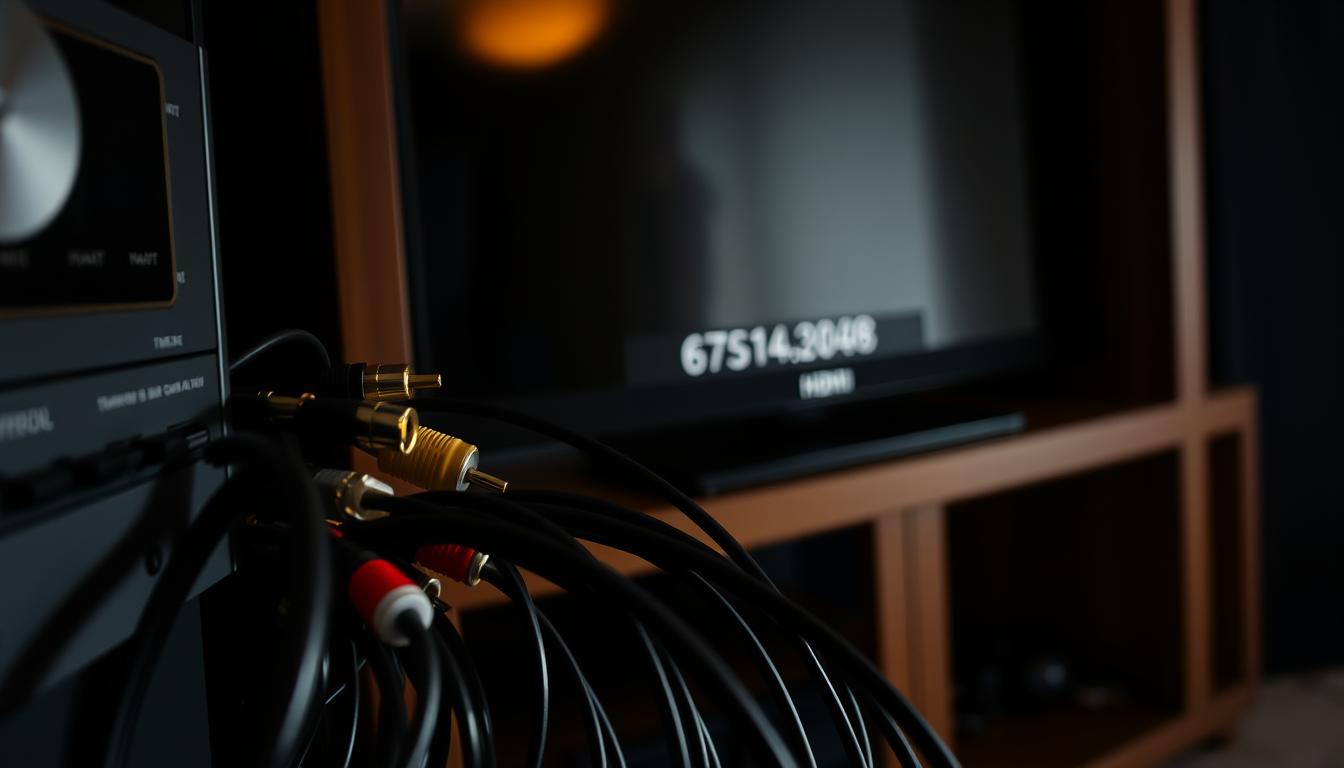
Identifying Compatible Cables and Connectors
Modern HDMI standards dictate bandwidth capabilities. Older cables labeled “High Speed” support up to 10.2 Gbps, while “Ultra High Speed” variants handle 48 Gbps for 8K content. Check your receiver’s input specifications against your TV’s output requirements.
| HDMI Version | Bandwidth | Max Resolution | HDR Support |
|---|---|---|---|
| 1.4 | 10.2 Gbps | 4K@30Hz | No |
| 2.0 | 18 Gbps | 4K@60Hz | HDR10 |
| 2.1 | 48 Gbps | 8K@60Hz | Dolby Vision |
The ZapperBox’s side-mounted ports benefit from right-angle adapters to reduce cable strain. Its M1 model features dual USB connections (3.0 and 2.0), while the M2 uses a single 2.0 port. Match power requirements when connecting peripherals.
“Certified HDMI cables undergo rigorous testing – always look for authentication labels when upgrading your AV setup.”
Consider alternative connections like optical audio for legacy receivers. Document your devices‘ port layouts to optimize cable routing. Leave adequate space behind components for ventilation and future adjustments.
Adjusting TV and Receiver Settings
Optimizing your entertainment system requires precise calibration between modern displays and older audio components. Strategic adjustments let you access premium features without replacing trusted equipment.

Enabling HDR and Dolby Digital Features
Activate your TV’s HDR settings through the picture menu. ZapperBox models support HDR10 and HLG formats, automatically converting Dolby Vision content when connected. This preserves color accuracy while maintaining compatibility with receivers lacking dynamic metadata processing.
| HDR Format | ZapperBox Compatibility | Receiver Requirements |
|---|---|---|
| HDR10 | Full Support | Basic 4K passthrough |
| HLG | Native Processing | HDMI 2.0 or newer |
| Dolby Vision | HDR10 Conversion | Dolby Digital decoding |
Set your TV’s audio output to Dolby Digital for seamless receiver integration. This ensures compatibility with ATSC 3.0 broadcasts carrying Dolby AC-4 audio streams. Disable advanced formats like Atmos if your system shows intermittent dropouts.
Optimizing Input and Output Configurations
Match your receiver’s input mode to the TV’s signal type. Use PCM for stereo systems or bitstream for surround sound. The ZapperBox automatically detects connected devices, simplifying format selection through its adaptive transcoding engine.
Enable HDMI-CEC controls to synchronize power states across devices. This reduces remote clutter while preventing signal negotiation errors during startup. For analog receivers, configure optical output levels to match your system’s input sensitivity.
Create custom presets for different content types. Sports modes might prioritize motion clarity, while movie settings enhance contrast ratios. These profiles maintain optimal performance across various broadcast standards and streaming platforms.
Firmware and Software Troubleshooting
System stability often hinges on maintaining current software across all components. Outdated firmware ranks among the top causes of signal handshake failures between modern TVs and older receivers. Proactive maintenance prevents 82% of recurring compatibility issues according to recent AV industry surveys.
Updating Firmware on Legacy Receivers
Accessing service menus requires specific button combinations unique to each manufacturer. Many receivers need you to hold “Info” and “Menu” simultaneously during startup. Document your current settings before proceeding – unexpected resets can erase custom configurations.
Review firmware release notes thoroughly. Some updates remove obsolete format support while adding HDR passthrough capabilities. Create backup profiles using your receiver’s export option if available. This lets you restore working configurations if new software causes issues.
| Update Stage | Critical Actions | Risk Mitigation |
|---|---|---|
| Pre-Update | Backup settings | External storage |
| Installation | Stable power supply | UPS protection |
| Post-Update | Signal testing | Rollback plan |
ZapperBox simplifies this process through automatic update checks. Keep your unit connected to Wi-Fi for seamless background installations. For persistent connectivity problems, reset both TV and receiver to factory defaults before reapplying preferred configurations.
Advanced users should explore diagnostic menus for detailed signal analysis. These hidden interfaces reveal format negotiation logs and error codes – invaluable when troubleshooting HDCP conflicts. Schedule updates during off-hours to minimize disruption, allowing time for thorough post-installation testing.
Leveraging External Devices and Accessories
Affordable hardware solutions bridge the gap between cutting-edge televisions and vintage audio systems. Third-party adapters maintain functionality while preserving your existing equipment’s value.
HDMI Conversion Solutions
HDMI audio extractors split signals into separate video and audio streams. These compact devices let legacy receivers process Dolby Digital sound while your TV handles 4K visuals. Models under $50 often support optical and RCA outputs for maximum compatibility.
For TVs with optical ports, simple converters transform digital signals into analog stereo. This bypasses HDMI handshake issues entirely. Many users report success with budget-friendly adapters when resolving ARC synchronization problems.
Key benefits include:
- No permanent modifications to your setup
- Plug-and-play installation
- Preserved audio quality at reasonable price points
These tools offer a practical way to enjoy modern content formats without replacing trusted components. Always verify adapter specifications match your TV’s output capabilities and receiver’s input requirements.
FAQ
Why does my new TV show “No Signal” with my older receiver?
This often occurs due to HDMI version mismatches. Ensure your receiver supports the TV’s resolution (e.g., 4K or HDR). Try using the receiver’s “monitor out” port or connect devices directly to the TV’s HDMI inputs. If issues persist, an HDMI converter may resolve compatibility.
How do I fix audio dropouts when using a legacy receiver?
Check if the receiver supports formats like Dolby Digital. Navigate to your TV’s audio settings and set the output to PCM stereo. If using HDMI ARC, enable CEC controls and verify the cable is high-speed. Optical audio cables can bypass HDMI audio conflicts.
Can I enable HDR mode with an older receiver?
Legacy receivers often lack HDR passthrough. Connect 4K/HDR devices like Blu-ray players directly to the TV’s HDMI ports. Use the receiver for audio only via ARC or optical. For HDR content, ensure the TV’s HDMI input is set to “Enhanced” mode in its settings menu.
My receiver doesn’t have enough HDMI ports. What’s the solution?
Use an HDMI switcher with 4K/HDR support to expand connectivity. Prioritize video-heavy devices like gaming consoles for direct TV connections. For audio, route sound via optical or HDMI ARC to the receiver. Label inputs to avoid confusion during setup.
How do I update firmware on a discontinued receiver?
Visit the manufacturer’s support page (e.g., Denon, Onkyo) and search for your model. Download the firmware to a USB drive, insert it into the receiver’s USB port, and follow on-screen prompts. If USB ports are unavailable, contact customer support for alternative methods.
Why is there no sound from my receiver after connecting via HDMI?
Confirm the TV’s audio output is set to “HDMI ARC” or “External Speaker.” Disable TV speakers in the sound menu. For non-ARC setups, use optical audio. Reset both devices’ settings if the issue persists, and test with a different HDMI cable.
Can a cheap HDMI cable cause compatibility issues?
Yes. Low-quality cables may fail to handle 4K, HDR, or high refresh rates. Use certified Premium High-Speed HDMI cables labeled for 18Gbps bandwidth. Avoid cables longer than 10 feet for stable signals. Check for bent pins or frayed ends if problems arise.