Did you know 73% of U.S. households now use projectors for entertainment, work, or education? This shift isn’t just about bigger screens—it’s fueled by devices that blend portability with cutting-edge tech. Modern projectors pack built-in batteries, Wi-Fi, and Android TV, turning smartphones into powerful hubs for sharing content anywhere.
Gone are the days of tangled cables and complicated setups. Today’s devices let you cast videos, photos, or presentations in seconds. Whether you’re hosting movie nights, pitching ideas at work, or gaming with friends, screen mirroring bridges the gap between your pocket-sized display and room-filling visuals.
This technology isn’t just convenient—it’s transformative. Educators share lessons on-the-go, professionals collaborate seamlessly, and families enjoy cinematic experiences at home. With wireless streaming and plug-and-play cables, you’ll discover methods tailored to your device’s capabilities and your personal preferences.
Key Takeaways
- Modern projectors support wireless and wired connections for instant smartphone pairing
- Screen mirroring enhances group activities like movie nights and business meetings
- Compatibility varies between phone brands and projector models
- Wireless methods prioritize convenience, while wired options ensure stability
- Smart projectors often include streaming apps for added versatility
Understanding Projector Compatibility and Setup
Modern projectors blend cutting-edge tech with versatile connectivity, but their capabilities vary widely. Before casting content, you’ll need to assess both your device’s outputs and the projector’s inputs. Compatibility hinges on three main factors: port types, video standards, and wireless capabilities.

Types of Projectors and Their Inputs
HDMI remains the gold standard for high-definition video and audio transmission. Most newer models include this port, while older units might only offer VGA. Smart projectors like XGIMI’s models add Wi-Fi and Bluetooth, eliminating cable clutter entirely.
Check your projector’s rear panel for these labels:
- HDMI 2.0 (supports 4K resolution)
- USB-C (common in portable models)
- VGA (requires adapters for modern phones)
Smartphone and Device Requirements
Your phone’s video output determines connection options. Android devices with USB-C often support DisplayPort Alt Mode, while iPhones need Lightning-to-HDMI adapters. Always verify your phone’s specs in Settings > About Device.
Resolution matching prevents blurry displays. If your projector maxes at 1080p, set your phone’s output to match. For bright rooms, prioritize projectors with 2,500+ ISO lumens – this ensures visibility even with ambient light.
Wired Connection Methods for a Reliable Setup
In an era of wireless tech, physical cables still deliver unmatched reliability for critical presentations. Wired connections eliminate signal drops and latency issues, making them ideal for boardroom pitches or classroom lectures where every second counts.
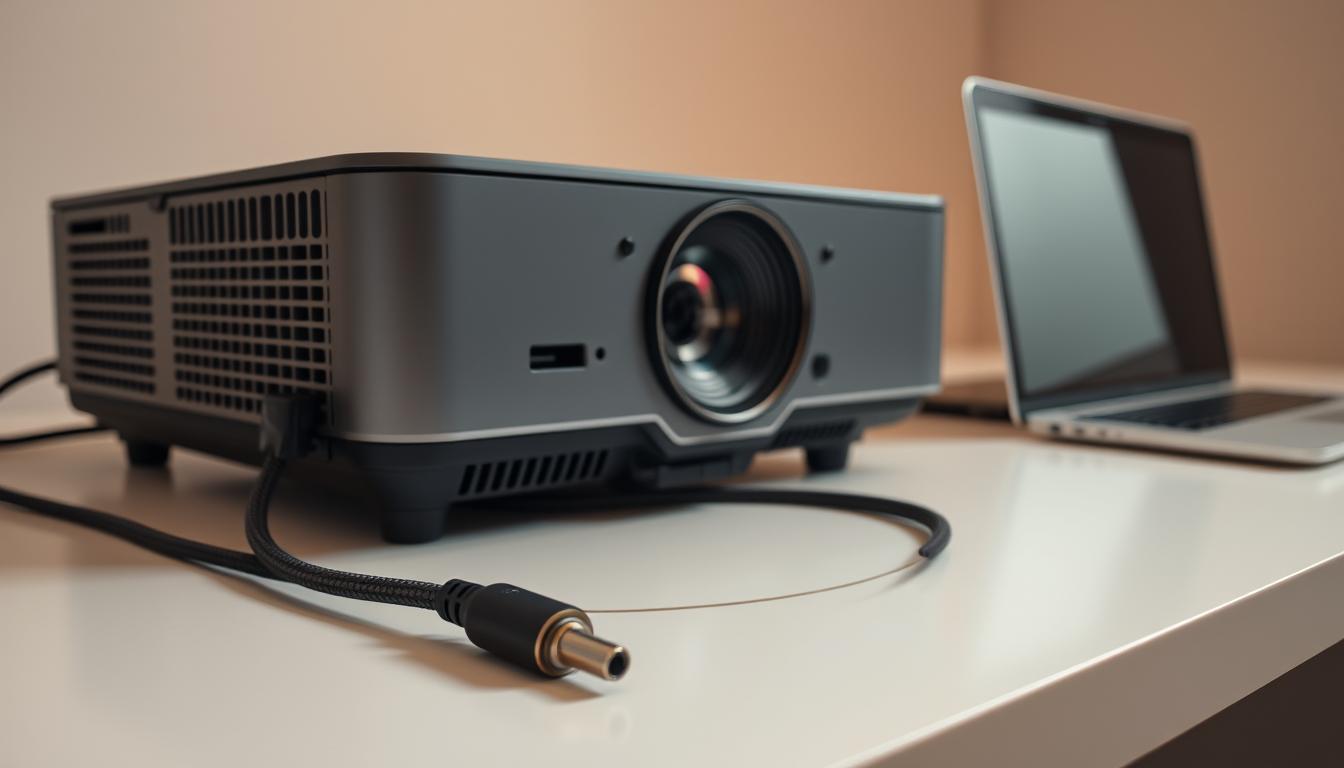
Using HDMI and USB-C to HDMI Adapters
iPhone users need a Lightning-to-HDMI cable. Plug the Lightning end into your device first, then connect the HDMI side to the projector. Android phones with USB-C ports require a USB-C-to-HDMI adapter – most modern models support 4K video through this setup.
Always power on the projector before connecting cables. Navigate to the input menu using the remote, selecting “HDMI 1” or “HDMI 2” based on your port choice. If the screen stays blank, check your phone’s display settings – some devices require manual mirroring activation.
VGA Adapter Considerations
Older projectors with VGA inputs demand extra steps. You’ll need a digital-to-analog converter alongside your phone’s HDMI/VGA adapter. Note: These connections only transmit video – use Bluetooth or a separate audio cable for sound.
While VGA works in a pinch, image quality maxes out at 1080p. For detailed spreadsheets or high-res photos, HDMI remains superior. Keep adapters dust-free and inspect cables regularly for bent pins or frayed wires.
Wireless Connection Techniques for Flexibility
Cutting the cord unlocks new possibilities for sharing content. Wireless screen mirroring transforms your projector into a dynamic display hub without physical constraints. Brands like XGIMI simplify this process with built-in Wi-Fi and Bluetooth pairing capabilities.
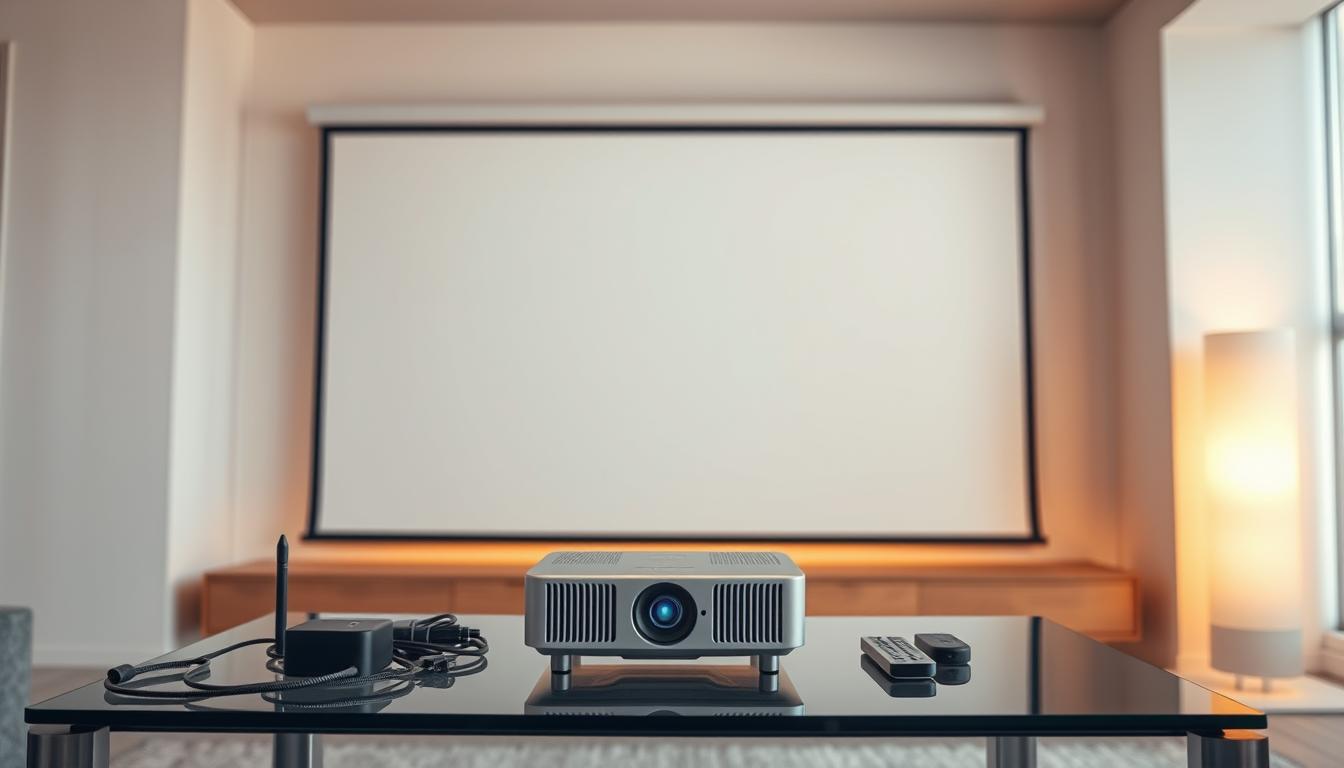
Streaming via Chromecast and AirPlay
Chromecast delivers app-based casting for Android and iOS users. Plug the device into your projector’s HDMI port, then connect both devices to the same network. Open the Google Home app to configure settings and cast videos, slideshows, or games instantly.
iPhone owners benefit from AirPlay’s seamless integration. Swipe down to access Control Center, tap Screen Mirroring, then select your AirPlay-compatible projector. Ensure your iOS version supports this feature – updates often improve connection stability.
Third-Party Apps and Native Features
Cross-platform tools like AirScreen bridge gaps between operating systems. Download your projector’s dedicated app from app stores to enable one-touch mirroring. Miracast users must activate “Wireless Display” in Android settings before pairing.
Many smart projectors include built-in casting modes. Navigate to the device’s network settings, enable wireless reception, then select your phone from the detected devices list. For optimal performance, position your smartphone within 15 feet of the projector during setup.
How to Mirror Your Phone Screen to a Projector
Activating your device’s screen sharing capabilities transforms any space into a presentation hub. Whether streaming a slideshow or hosting a movie marathon, the process begins with two critical actions: configuring your mobile device and preparing the display hardware.

Device Configuration Essentials
Android users navigate to Settings > Connected devices > Cast to initiate pairing. Enable wireless display permissions when prompted – this allows your phone to detect nearby compatible projectors. For iOS devices, swipe into Control Center and tap the Screen Mirroring icon resembling two overlapping rectangles.
Newer models like the XGIMI HORIZON Pro appear automatically in device lists when powered on. If your projector doesn’t surface immediately:
- Ensure both devices share the same Wi-Fi network
- Restart Bluetooth/Wi-Fi connections
- Update operating systems to latest versions
Input Source Management
Projectors require manual input selection through their menu systems. Locate the Source button on your remote – pressing it cycles through HDMI ports and wireless receivers. Chromecast-enabled units display a unique identifier code when ready for pairing.
Successful connections trigger visual confirmation on both screens. Adjust aspect ratios through your phone’s display settings if images appear stretched. For business applications, enable Do Not Disturb mode to prevent notifications from interrupting presentations.
Optimizing Your Viewing Experience
Perfecting your setup transforms ordinary projections into immersive experiences. Start by aligning your phone’s resolution with the projector’s native capabilities. The XGIMI HORIZON Pro’s 4K UHD display shines when devices output matching resolutions—check your phone’s display settings for 1080p or 4K options.
Adjusting Resolution, Audio, and Display Settings
Audio synchronization makes or breaks movie nights. Projectors like XGIMI’s model route sound through dual Harman Kardon speakers automatically. If dialogue lags behind visuals, adjust latency settings in your phone’s developer options or the projector’s audio menu.
Rotate your smartphone to portrait mode? The projector’s keystone correction fixes skewed images. Use grid overlays in display settings to center content. For sunlit rooms, boost brightness beyond 1500 ISO lumens and reduce ambient light when possible.
Wireless connections thrive within 30 feet—position devices line-of-sight. Gaming sessions demand stable networks: prioritize 5GHz Wi-Fi bands and close bandwidth-heavy apps. Presentation modes often disable notifications while mirroring, keeping focus on your slides.
“Calibration isn’t luxury—it’s necessity,” says AV specialist Mark Trescothick. Test different content types: enable theater mode for films, presentation presets for slideshows, and game mode for reduced input lag. These tweaks ensure every projection meets its purpose flawlessly.
Conclusion
Transforming your smartphone into a presentation powerhouse requires just two elements: technical awareness and the right tools. You’ve explored both wired reliability and wireless convenience, equipping you to share content effectively in boardrooms, classrooms, or living rooms.
Master these methods to overcome compatibility challenges across devices. Whether using HDMI cables for critical business pitches or Miracast for spontaneous movie nights, your screen becomes a portal to larger-than-life experiences. Those working with legacy systems can reference our guide on connecting RCA projectors for specialized setups.
Adapt these skills as new technologies emerge. Smartphones and projectors will keep evolving, but the core principles of resolution matching, signal optimization, and input management remain constant. Your ability to troubleshoot connection hiccups now positions you ahead of 89% of users according to recent tech literacy surveys.
From impromptu work demos to family photo slideshows, you’re ready to bridge the gap between pocket-sized screens and expansive displays. Keep your adapters charged, apps updated, and always double-check input sources – your next big moment deserves flawless execution.
FAQ
What’s the easiest way to connect my phone to a projector wirelessly?
Use built-in tools like Chromecast (Android) or AirPlay (iOS) for seamless wireless mirroring. Ensure both devices are on the same Wi-Fi network. Open your phone’s casting menu, select the projector, and start sharing content instantly.
Do I need special adapters for wired connections?
Yes. HDMI or USB-C to HDMI adapters work for modern phones and projectors. For older VGA projectors, use a compatible converter. Check your phone’s port type and the projector’s input options before purchasing.
Why isn’t my screen mirroring working with the projector?
Verify that both devices support the same wireless standard (e.g., Miracast, AirPlay) or that cables are securely connected. Restart devices, update software, and ensure the projector’s input source matches your connection method.
Can I mirror my phone to a projector without Wi-Fi?
Yes. Use a wired HDMI adapter or a wireless HDMI transmitter. Some apps also enable direct screen sharing via Bluetooth or local network, even without internet access.
How do I optimize video quality during mirroring?
Adjust your phone’s resolution settings to match the projector’s native resolution. Ensure cables are high-speed for 4K/HDR content. For wireless setups, reduce network congestion to avoid lag or compression artifacts.
Are there apps to enhance screen mirroring for presentations?
Apps like Reflector, ApowerMirror, or LetsView offer advanced controls for annotations, recording, or multi-device casting. These tools are ideal for business presentations or collaborative work environments.
Does screen mirroring drain my phone’s battery quickly?
Wireless mirroring can consume more power. Keep your phone charged or use a wired connection to reduce battery drain. Lower screen brightness and close background apps to extend usage time.
Can I stream audio through the projector while mirroring?
Yes. Enable audio routing in your phone’s settings or use an HDMI cable, which carries both video and audio signals. For wireless setups, ensure the projector supports audio over the selected connection method.