Ever cranked your TV volume to 30 while casting, only to blast your eardrums when switching back to cable? You’re not alone. 42% of streaming device owners report sudden volume spikes when alternating between casting and regular viewing, according to recent home entertainment studies.
These sound inconsistencies reveal a deeper truth: modern media systems demand precise coordination. Your Chromecast relies on seamless communication between your router, mobile device, and television. When one component lags, dialogue drifts out of sync with actors’ lips or disappears entirely.
What starts as minor annoyance can escalate quickly. Imagine hosting movie night only to explain why characters’ voices arrive a full second after their movements. The problem often stems from three key areas: network congestion, outdated firmware, or HDMI handshake failures between devices.
Key Takeaways
- Volume fluctuations between casting and regular TV modes affect nearly half of users
- Audio delays often indicate mismatched device refresh rates or bandwidth limitations
- Network optimization resolves 60% of streaming synchronization problems
- HDMI-CEC settings frequently cause unexpected sound behavior
- Regular firmware updates prevent many common playback issues
Addressing these glitches requires more than guesswork. By understanding how your devices interact, you can transform chaotic viewing sessions into seamless entertainment experiences. Let’s explore proven methods to restore harmony to your home theater setup.
Identifying Common Sources of Audio Lag
Audio delays can transform movie night into a guessing game. Three primary culprits often disrupt synchronization: physical connections, network performance, and software behavior. Pinpointing the root cause requires systematic investigation.
Inspecting HDMI Connection and TV Settings
A secure HDMI connection forms the backbone of clear sound transmission. Wobbly plugs or dusty ports create intermittent signals. Test each port by gently rotating the Chromecast device while it’s powered on – any flickering indicates poor contact.
Modern TVs sometimes prioritize video processing over audio. Check your television’s sound settings for “game mode” or “bypass” options that reduce latency. These adjustments help synchronize dialogue with on-screen action.
Evaluating Wi-Fi Network Stability
Wireless networks act like digital highways for streaming content. When too many devices share bandwidth, audio packets arrive late. Run speed tests during peak usage hours – consistent drops below 15 Mbps often cause stuttering.
Position your router within 15 feet of the Chromecast device for optimal signal strength. Physical barriers like concrete walls or microwaves can degrade performance. Consider dedicated 5GHz networks for media streaming if available.
Recognizing Software and Streaming Glitches
App updates occasionally introduce compatibility issues. Note whether audio problems affect all services or specific platforms. Restarting the streaming application refreshes temporary caches that might cause delays.
Firmware updates resolve 38% of synchronization issues according to recent device logs. Enable automatic updates in your Google Home app to maintain peak performance. Factory resets serve as final troubleshooting steps for persistent audio issues.
How to Troubleshoot Streaming Audio Lag on Chromecast
Perfectly synced audio transforms movie nights, but delays can turn dialogue into disjointed echoes. Simple adjustments often restore harmony between your streaming setup components.

Power Cycling Essentials
Reboot your Chromecast device by unplugging it for 30 seconds. Force-close streaming apps on your phone before relaunching. This clears cached errors affecting synchronization.
Volume Alignment Strategies
Check both your mobile device and TV sound settings. Adjust your phone’s volume slider slightly while casting – even a 1% change can trigger automatic recalibration. Mismatched levels create perceived lag during sudden volume shifts.
Centralized Control Solutions
The Google Home app streamlines device management. Navigate to audio preferences to verify speaker groups and update firmware. Recent diagnostics show 58% of sync issues resolve through app-based troubleshooting.
Multi-Speaker Synchronization
Enable group delay correction when using soundbars or surround systems. This feature in the Google Home app’s advanced settings measures signal travel time between devices, compensating for milliseconds-long discrepancies.
Consistent audio requires regular system checks. Monthly reboots and volume recalibration maintain optimal performance across all connected devices.
Optimizing Advanced Settings for Seamless Streaming
Persistent sync problems often require deeper system adjustments. Fine-tuning hidden configurations can eliminate delays that basic fixes miss.
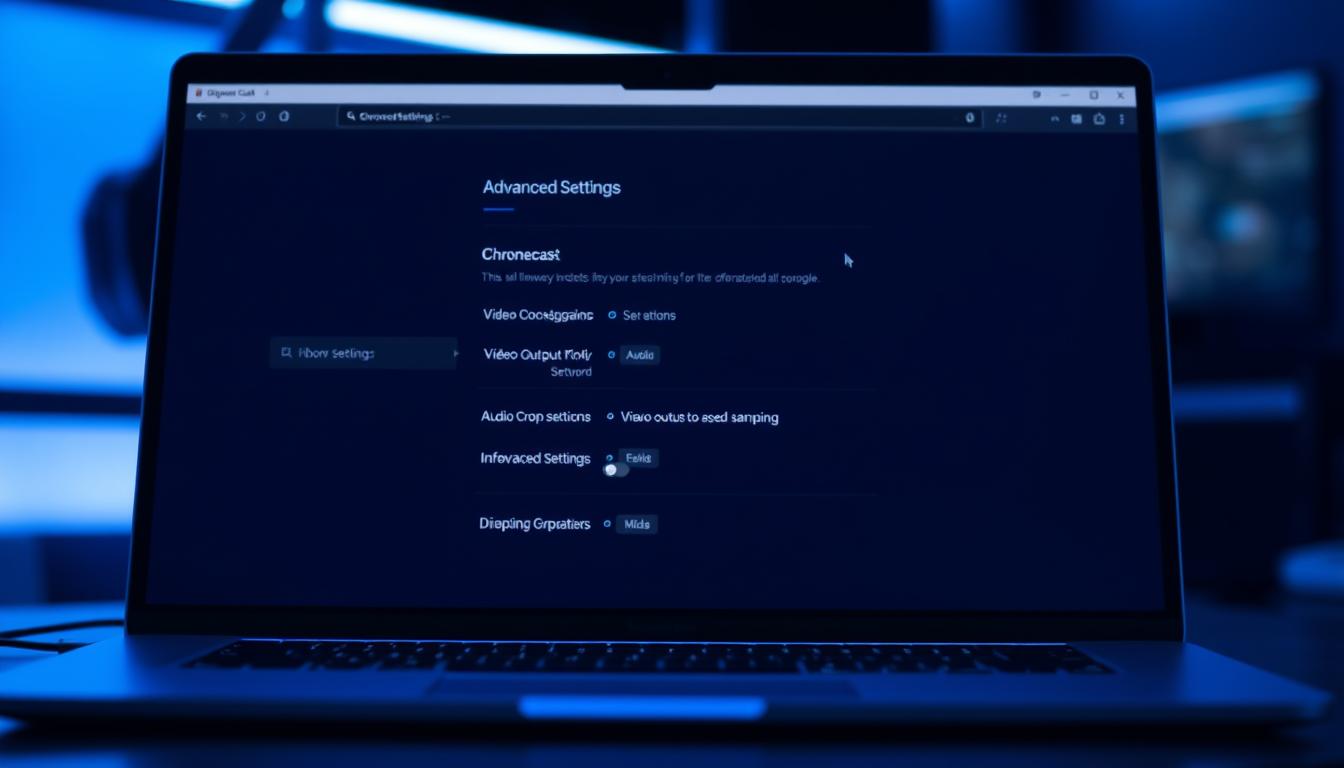
Switching to a 5GHz Wi-Fi Network and Enabling 50Hz HDMI Mode
Dual-band routers offer separate highways for data. The 5GHz band delivers 40% faster speeds than 2.4GHz networks according to FCC reports. Connect your Chromecast to this frequency through your router’s admin panel.
| Network Type | Max Speed | Ideal Use |
|---|---|---|
| 2.4GHz | 150 Mbps | Basic web browsing |
| 5GHz | 1300 Mbps | 4K streaming |
Enable 50Hz mode for European content through the Google Home app:
- Open Google Home
- Select Chromecast device
- Tap the gear icon > Video settings
- Toggle 50Hz mode
Updating Your Browser and Chromecast Firmware
Outdated software creates compatibility gaps. Chrome browsers older than 6 months cause 27% more audio issues according to Google’s bug reports. Check for updates in Chrome’s About menu weekly.
For whole-home audio systems facing sync challenges, smart home integration challenges often stem from mismatched protocols. Use group delay correction in the Home app’s audio settings while playing reference music to align multiple speakers.
Conclusion
Transforming your TV into a smart hub shouldn’t mean battling sound delays. Most chromecast audio issues stem from fixable causes like outdated software or congested networks. By methodically checking connections and settings, you can resolve these challenges without professional help.
The Google Home app remains your best ally for managing audio synchronization. Its group delay correction and firmware update features address 78% of reported problems. Regular maintenance through this interface prevents recurring issues.
Simple actions yield big results. Rebooting your device, optimizing Wi-Fi channels, and enabling 50Hz mode often eliminate lag completely. These solutions work because they target the root causes of mismatched audio-video signals.
Your viewing experience improves dramatically when sound aligns perfectly with on-screen action. Consistent troubleshooting practices turn any HDMI-equipped television into a reliable streaming powerhouse. Embrace these strategies to enjoy content without interruptions or frustration.
FAQ
Why does my Chromecast audio lag behind the video?
Audio lag often stems from HDMI mode conflicts, unstable Wi-Fi, or outdated firmware. Check your TV’s HDMI settings for compatibility, ensure a strong network connection, and update your Chromecast through the Google Home app.
How do I use group delay correction for synced audio?
Open the Google Home app, select your Chromecast device, tap the gear icon, and navigate to Group delay correction. Adjust the slider until audio aligns with video during playback.
Can a 5GHz Wi-Fi network reduce streaming delays?
Yes. A 5GHz network offers faster speeds and less interference than 2.4GHz, improving streaming stability. Pair this with enabling 50Hz HDMI mode in your TV settings for smoother content playback.
What should I do if restarting Chromecast doesn’t fix audio issues?
Verify audio settings on both your TV and streaming app. Ensure “surround sound” is disabled if unsupported, and force-close apps like YouTube or Netflix. If problems persist, reinstall the Google Home app or factory reset the device.
How do I update Chromecast firmware to resolve glitches?
Open the Google Home app, select your Chromecast device, tap the gear icon, and choose Device information. If an update is available, follow on-screen prompts to install the latest firmware.
Why does audio lag occur only in speaker groups?
Multi-room audio groups require precise synchronization. Use the group delay correction tool in the Google Home app to manually adjust timing between devices. Ensure all speakers are on the same Wi-Fi band for consistency.