
Imagine missing a critical headshot because your surround sound arrived late. Modern gaming relies on split-second reactions, and audio latency quietly sabotages victories. Studies show delays as small as 50 milliseconds disrupt spatial awareness in competitive shooters and rhythm games.
Your console and receiver form a high-stakes partnership. Every digital handshake between devices adds milliseconds that erode immersion. While some delay is inevitable, smart configuration strips away unnecessary processing layers. Direct signal paths and prioritized settings become your weapons against lag.
This guide reveals techniques used in esports arenas and high-end home theaters. You’ll discover how to bypass lag-inducing features in your equipment while maximizing audio clarity. Whether you play RPGs or battle royales, these adjustments create tighter synchronization between actions and sound effects.
Key Takeaways
- Latency under 100ms is critical for competitive gaming performance
- Receiver processing modes often add hidden delays
- HDMI ARC connections minimize signal conversion steps
- Game-specific audio profiles outperform generic presets
- Firmware updates frequently address latency issues
Understanding Audio Latency and Its Impact on Gaming
In high-stakes gaming, sound cues arriving late are like blurred vision during a sprint. Audio latency occurs naturally across mediums—sound travels at 1 millisecond per foot in open air, while digital systems add layers of processing delays. When you’re actively engaged in gameplay, these delays become glaringly obvious compared to passive media consumption.
What Is Audio Latency?
This delay measures the gap between your console generating a sound and your ears perceiving it. Every device in your setup—from the gaming hardware to speakers—adds milliseconds through signal conversions. While some delay is unavoidable, modern systems can reduce it to near-invisible levels with proper configuration.
Why Every Millisecond Counts
Competitive titles demand split-second reactions. A 50ms delay makes footsteps in a shooter arrive after your opponent appears on-screen. Rhythm games become unplayable when beats don’t align with visual markers. Your brain detects mismatches as small as 20ms, triggering disorientation that hampers performance over time.
Multiple devices compound delays—a receiver adding 30ms and a TV contributing 40ms creates problematic 70ms total lag. Prioritizing direct signal paths and disabling unnecessary sound enhancements keeps synchronization tight. Pro gamers often use specialized modes that strip away post-processing for cleaner audio timing.
How to Link AV Receiver to a Gaming Console Without Lag
Strategic hardware configuration forms the foundation of responsive gaming audio. Your equipment’s physical connections and digital handshakes determine whether you hear explosions as they happen or milliseconds later. Precision begins with choosing the shortest signal route and stripping away unnecessary processing layers.
Selecting the Right HDMI Inputs and Outputs
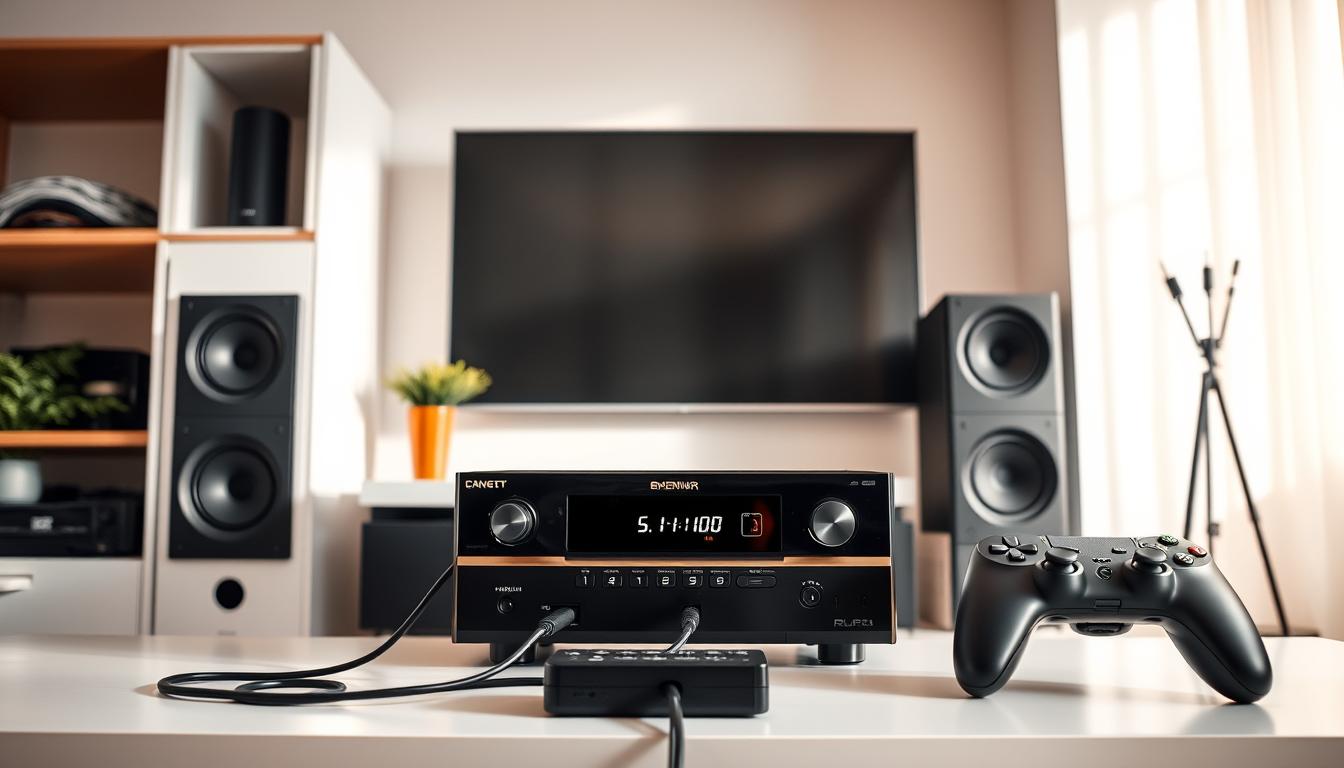
Prioritize HDMI inputs labeled “Game” or “Enhanced” on your receiver, as these often support higher bandwidths. Connect your console directly to the AVR using a certified Ultra High Speed HDMI cable, bypassing the TV’s audio return channel. This creates a direct path: game system → amplifier → display.
Test different HDMI output ports on your receiver if synchronization issues persist. Some models dedicate specific ports to 4K/120Hz or Variable Refresh Rate signals, crucial for modern consoles. For multi-device setups, consider a streaming device setup that separates gaming gear from entertainment systems.
Configuring Your Console and Receiver Settings
Switch your PlayStation or Xbox audio output to Linear PCM (uncompressed) in system settings. Disable Dolby Atmos, DTS:X, and other spatial processing on both devices. Activate your receiver’s gaming mode if available—this bypasses upscaling algorithms that add delay.
Optimizing Audio Return Channel (ARC) and Other Connection Options
While HDMI ARC simplifies TV-based setups, it introduces extra conversion steps. For competitive play, use your AVR’s main HDMI output instead. If you must use ARC, enable “Bitstream Direct” mode and disable lip-sync correction on all devices.
Verify cable specifications match your console’s capabilities—older HDMI versions bottleneck new-gen systems. Replace any cables showing intermittent signal loss or color banding during high-frame-rate gameplay.
Advanced Setup Options and Alternative Connection Methods
When milliseconds determine victory, your audio setup needs surgical precision beyond standard connections. Specialized hardware and unconventional routing often provide the latency reductions competitive play demands.
Using an HDMI Audio Extractor for Better Performance
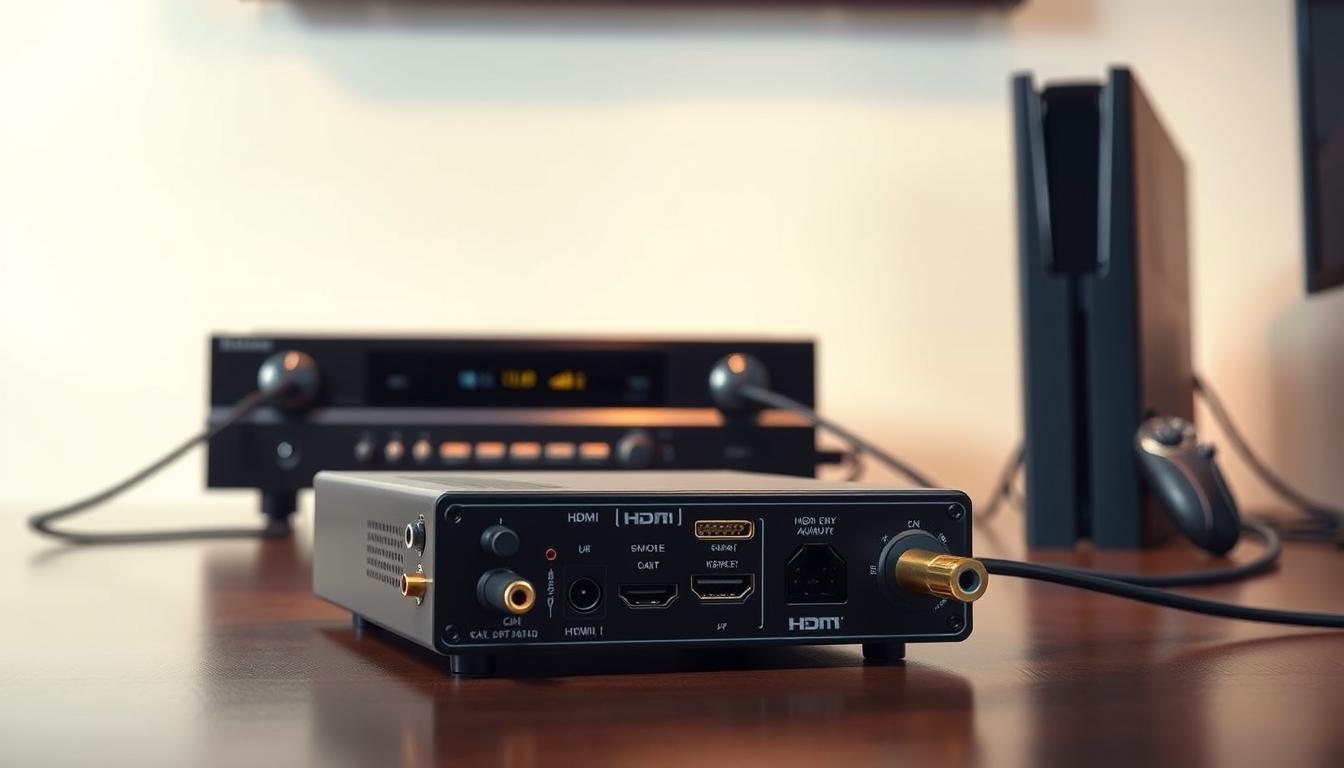
HDMI audio extractors split signals at the source, sending pristine video to your display while diverting sound through dedicated outputs. These compact devices plug directly between your console and TV, using optical or analog ports to feed speakers or soundbars.
Quality extractors maintain 4K/120Hz passthrough while stripping away unnecessary processing. For racing games requiring instant engine feedback, this creates cleaner audio timing than TV passthrough systems. Always verify compatibility with your console’s resolution and refresh rate specs.
Alternative Audio: Linking to Speakers, Soundbars, or USB Dongles
Many modern TVs hide audio output gems in their ports. The 3.5mm jack on your display might offer lower latency than wireless connections when paired with powered monitors. For Xbox Series X owners, USB-C audio output adapters bypass HDMI entirely.
Pro tip: Soundbars with direct HDMI inputs outperform ARC connections. Configure your PlayStation’s USB port to output uncompressed PCM through a USB dongle for headphone-grade responsiveness. Musicians’ audio interfaces work surprisingly well for gaming when using balanced XLR connections.
Every setup has unique needs. Test different connections using rhythm game calibration tools to measure actual latency. Sometimes the simplest analog wire delivers victory where digital complexity fails.
Optimizing Your System for Low Latency Gaming
Modern displays often sabotage responsiveness through hidden processing layers. Cutting-edge TVs contain over 20 audio-visual adjustment features that add milliseconds of delay. Strategic configuration strips away these digital obstacles.
Disabling Unnecessary Audio Processing on Devices
Your entertainment system likely enables sound enhancements by default. Disable Dolby Atmos and virtual surround sound in both console and receiver menus. These features add 30-50ms delay while attempting to create artificial depth.
Turn off automatic volume leveling and dialogue boosters. These processing tools constantly analyze audio signals, introducing variable latency. For Sony devices, navigate to Sound Settings → Audio Output → Prioritize Linear PCM.
Adjusting TV Settings: Game Mode and A/V Sync Improvements
Activate your display’s dedicated game mode—this single change often halves total latency. Samsung QLED models reduce input lag from 40ms to 10ms in this mode. Disable motion interpolation and noise reduction under video settings.
| Setting | Standard Mode | Optimized Mode |
|---|---|---|
| Game Mode | Disabled | Enabled |
| Motion Smoothing | Auto | Off |
| A/V Sync | Manual | Auto |
| Color Enhancement | High | Medium |
Sony BRAVIA owners should set Content Type to Game through Quick Settings. Enable Variable Refresh Rate support if available—this synchronizes screen updates with console output. Update firmware quarterly to access new low-latency features.
Conclusion
Mastering your gaming audio setup demands precision at every connection point. By prioritizing direct HDMI paths and disabling unnecessary processing features, you create a streamlined signal chain. Console outputs paired with receiver inputs labeled for gaming often deliver the fastest response times.
Experimentation remains crucial—test different audio output options like HDMI extractors or USB dongles if standard connections lag. Many modern soundbars offer dedicated gaming ports that bypass TV-induced delays entirely.
Regular firmware updates unlock hidden performance gains across devices. While Bluetooth introduces problematic latency, wired connections maintain synchronization critical for competitive play. Remember: optimal setups evolve as you upgrade components or discover new features.
Investing time in systematic configuration transforms your gaming experience. Crisp, immediate sound feedback becomes your tactical advantage—every precisely timed footstep and explosion placement matters when milliseconds decide victory.
FAQ
Can HDMI ARC reduce audio lag when connecting a gaming console?
Yes, HDMI ARC (Audio Return Channel) simplifies connections by allowing audio to travel both ways through one cable. Ensure your console is linked to the AV receiver’s HDMI input, and enable ARC in both device settings. This minimizes processing steps, reducing latency.
Do soundbars or AV receivers offer better audio performance for gaming?
AV receivers typically support advanced formats like Dolby Atmos and multi-speaker setups, ideal for immersive gaming. Soundbars are compact but may lack the customization or low-latency modes found in dedicated receivers. Check if your soundbar supports Game Mode for faster response.
How do HDMI audio extractors improve gaming setups?
An HDMI audio extractor splits audio signals from video, bypassing TV processing delays. Connect it between your console and receiver to route audio directly, ensuring minimal lag. This works well for older receivers without HDMI 2.1 or dedicated gaming features.
Should I disable audio processing on my AV receiver?
Yes. Features like surround sound upmixing or room correction add processing delays. Switch your receiver to a Direct or Pure Direct mode to prioritize speed. Some models, like Denon’s AVRs, include a Low Latency toggle for gaming.
Does Game Mode on TVs affect audio latency?
Game Mode primarily reduces video lag by disabling post-processing effects. However, some TVs also optimize audio synchronization in this mode. Enable it on your TV and ensure A/V Sync (or similar) is turned off in your receiver’s settings.
Can I connect gaming consoles directly to speakers?
Most consoles lack dedicated audio outputs for standalone speakers. Use your AV receiver or a USB DAC (Digital-to-Analog Converter) for high-quality sound. For example, the Xbox Series X supports USB audio for headsets or external DACs.
Why does my surround sound system lag during multiplayer games?
Multi-channel formats like DTS:X require more processing. Try switching to stereo or LPCM (Linear PCM) audio in your console’s settings. This reduces the receiver’s workload, cutting down on delay while maintaining clear sound.