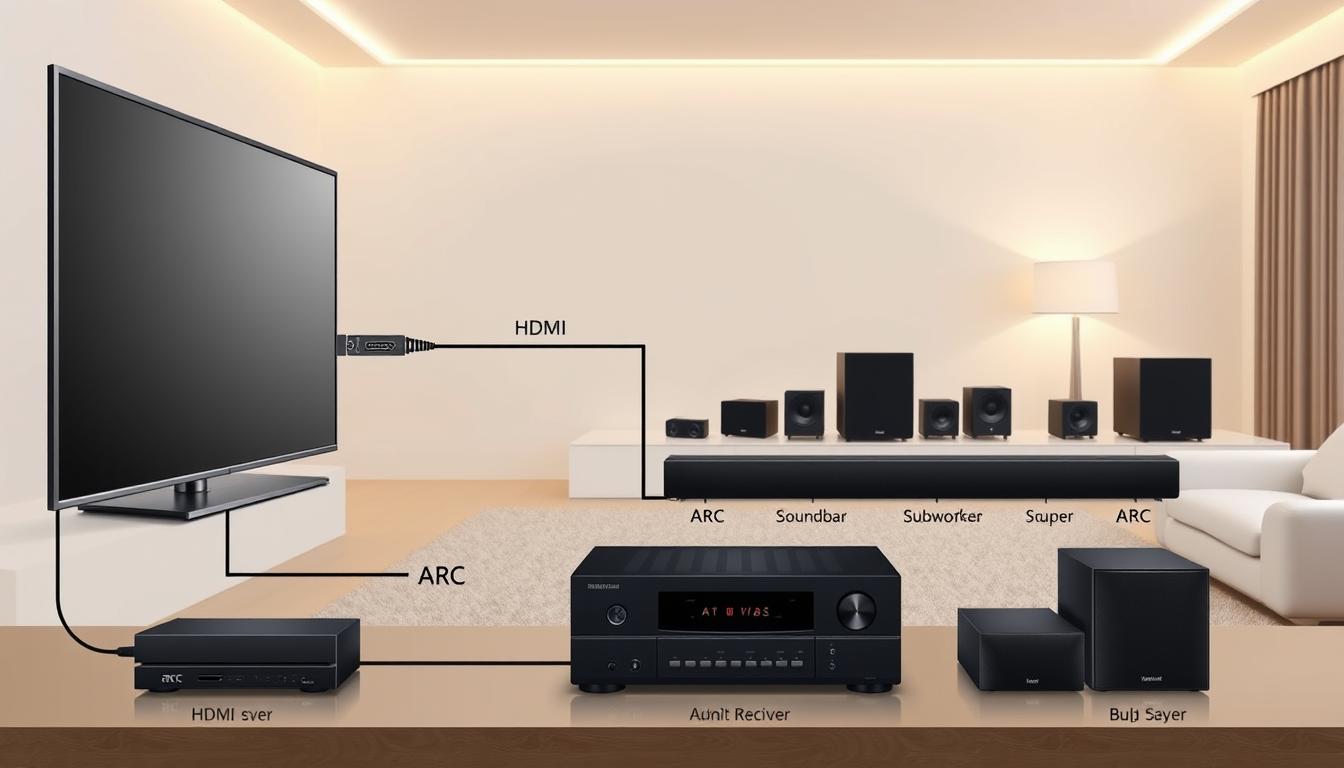

Did you know 60% of home theater users still rely on multiple cables for audio, even though a simpler solution exists? The average entertainment system requires three extra wires just to connect a TV to external speakers. That’s where HDMI’s Audio Return Channel steps in—a feature designed to streamline your setup while boosting sound quality.
This technology turns a single HDMI port into a two-way street for audio. Instead of routing sound through separate optical or analog cables, your TV sends audio directly to your soundbar or receiver through the same cord used for video. No more tangled wires or hunting for input ports—just pure, crisp sound synced to your screen.
This becomes especially useful when streaming Netflix or Disney+ through your TV’s built-in apps. Since ARC handles both input and output signals, it eliminates compatibility headaches. You’ll also save precious HDMI slots on your sound system for gaming consoles or Blu-ray players.
Key Takeaways
- Reduces cable clutter by using one HDMI connection for audio and video
- Simplifies streaming from TV apps to external speakers
- Requires compatible HDMI ports labeled “ARC” on both devices
- Delivers higher-quality sound than traditional optical cables
- Preserves HDMI inputs for other home theater components
Introduction to ARC: What You Need to Know
Imagine controlling your entire entertainment system with one remote while eliminating half the cables behind your TV. That’s the power of HDMI’s bidirectional audio technology. Unlike older setups, this feature lets your devices communicate through a single connection.
What Makes ARC Different?
The audio return channel turns your HDMI port into a two-lane highway. Video travels to your screen while sound flows back to speakers or receivers. No extra cables for streaming apps or gaming consoles. Just plug your Xbox into the soundbar, and let the TV handle the rest.
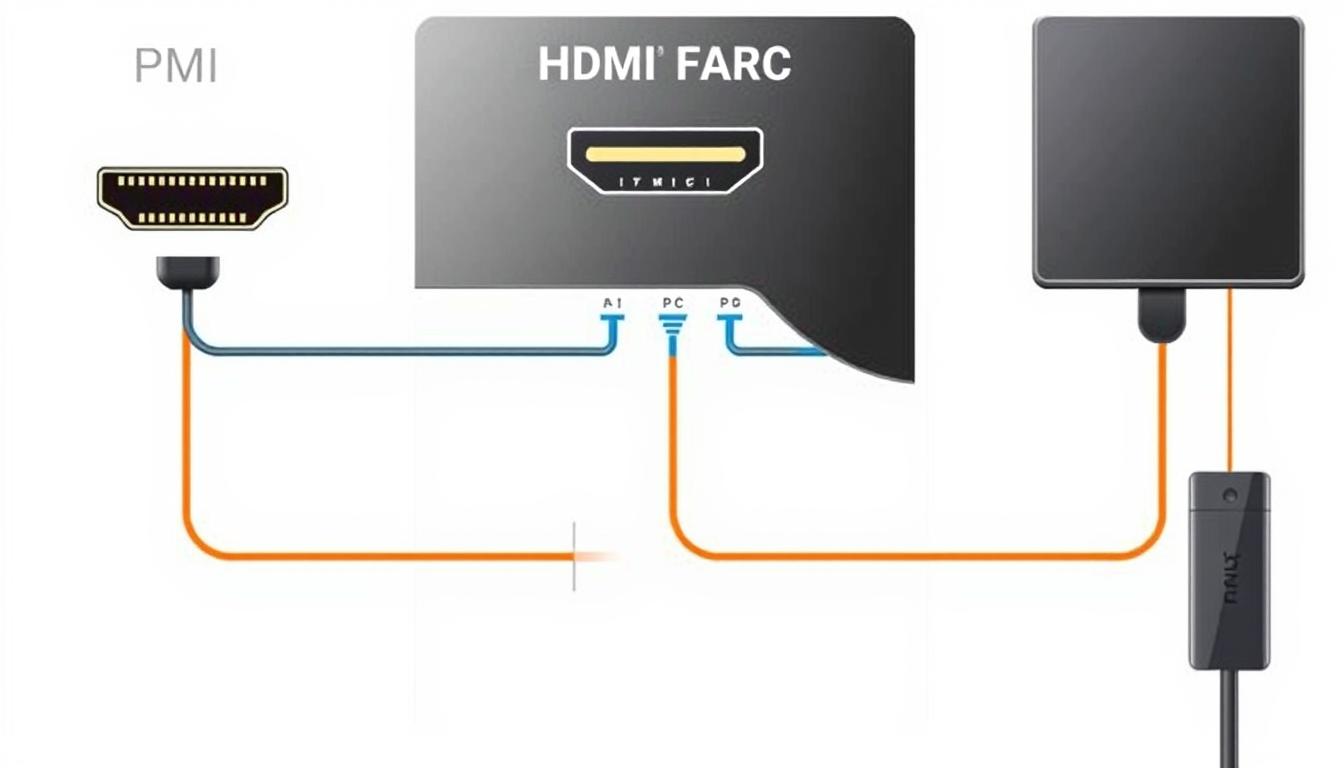
Old vs. New: Cable Showdown
Traditional systems need three wires: HDMI for video to the TV, another for audio to speakers, plus an optical cable for app sounds. With ARC, one HDMI cord does it all. This cuts clutter and avoids compatibility issues with advanced formats like Dolby Atmos.
Here’s why it matters: Your soundbar gets TV audio instantly. No lag during movie nights. No wrestling with input settings. Just pure, synchronized sound from every source – whether you’re gaming or binge-watching.
Key Benefits of ARC in Your Home Theater
Modern home theaters demand both clarity and convenience—ARC delivers both effortlessly. This technology transforms your entertainment space by merging superior acoustics with minimalist design principles.

Improved Sound Quality and Latency
Bidirectional audio flow through HDMI ensures pristine signal delivery. Unlike optical cables that compress data, ARC preserves original audio formats. You’ll notice tighter dialogue sync during fast-paced action scenes.
Latency drops to near-zero levels, eliminating awkward gaps between on-screen events and sound effects. This matters most when gaming or watching live sports—every footstep or crowd roar matches the visual perfectly.
“ARC’s two-way communication redefines audio precision in budget-friendly systems.”
Simplified Connectivity and Fewer Cables
Traditional setups require three separate wires for video input, audio output, and device control. With ARC-enabled receivers, one HDMI cable handles all three functions. Your entertainment console stays organized, and troubleshooting becomes straightforward.
| Feature | ARC Setup | Traditional Setup |
|---|---|---|
| Cables Required | 1 HDMI | 3+ wires |
| Sound Quality | Lossless | Compressed |
| Latency | <10ms | 20-50ms |
| Setup Time | 3 minutes | 15+ minutes |
Compatible soundbars and receivers automatically detect ARC signals. No manual input switching required—your system intelligently routes audio from streaming apps and connected devices.
Configuring Your Entertainment System With ARC
Streamlining your entertainment system starts with identifying the right HDMI port. Look for labels like “ARC” or “HDMI 1/ARC” on your TV and soundbar. This dedicated port enables two-way communication between devices.

- Connect your soundbar/receiver to the TV’s ARC-labeled HDMI port
- Plug gaming consoles or Blu-ray players directly into the sound system
- Enable HDMI-CEC in both devices’ settings for unified control
Most modern HDMI cables support ARC, but verify your TV’s manual for specific requirements. Activate the feature through your TV’s audio menu—often found under “Sound Output” or “External Speakers.”
| Connection Method | Devices Used | Setup Complexity |
|---|---|---|
| TV-Centric | TV + Soundbar | Beginner-friendly |
| Audio Hub | Receiver + Multiple Sources | Advanced |
| Hybrid | TV + External Processor | Moderate |
Test your configuration by playing content through TV apps. If dialogue syncs perfectly with lip movements, you’ve nailed the arc setup. For persistent HDMI ARC issues, reset both devices’ audio settings.
Optimize signal transmission by selecting “Bitstream” output in Blu-ray players and “PCM” for gaming consoles. These settings ensure compatibility across different audio formats while maintaining low latency.
Choosing the Right HDMI Cable and ARC-Compatible Devices
What’s the secret sauce for flawless audio through HDMI? It starts with matching your gear to the tech’s requirements. Many users already own suitable cables—no need for expensive upgrades.
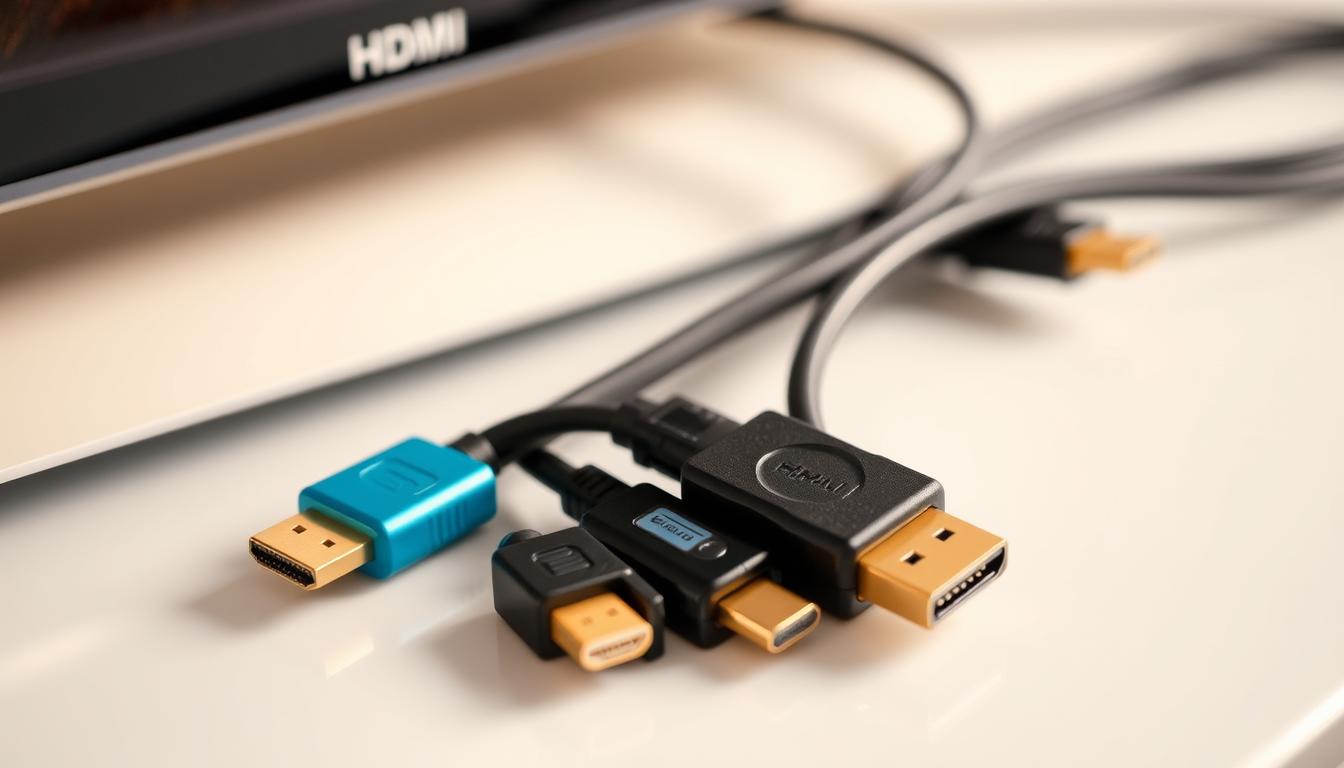
HDMI Cable Recommendations
Your existing High Speed HDMI cables likely work fine. Look for “Ethernet support” labels—these handle ARC’s two-way communication. Version 1.4 or newer ensures basic functionality.
For enhanced setups needing eARC, consider Ultra High Speed options. They future-proof your system for formats like Dolby TrueHD. Check this comparison:
| Cable Type | ARC Support | eARC Ready |
|---|---|---|
| High Speed | Yes | No |
| Premium High Speed | Yes | Partial |
| Ultra High Speed | Yes | Full |
Ensuring Device Compatibility
Both your TV and speaker system must have labeled ARC ports. Scan connection panels for “ARC” or “eARC” markings. Manufacturers often designate specific HDMI ports for this feature.
Follow this checklist:
- Confirm HDMI 1.4+ on both devices
- Enable CEC controls in settings
- Update firmware for latest protocols
“Always verify ARC compatibility in product manuals before purchase—assumptions create setup headaches.”
Test connections with your current cables first. Most systems activate automatically when proper hardware links exist. If audio drops occur, try shorter cable runs before buying replacements.
Connecting and Configuring Your TV, Soundbar, and Receiver
Streamlining your entertainment system requires choosing the right control center. Two distinct approaches emerge: letting your television manage inputs or empowering your audio gear as the command hub.
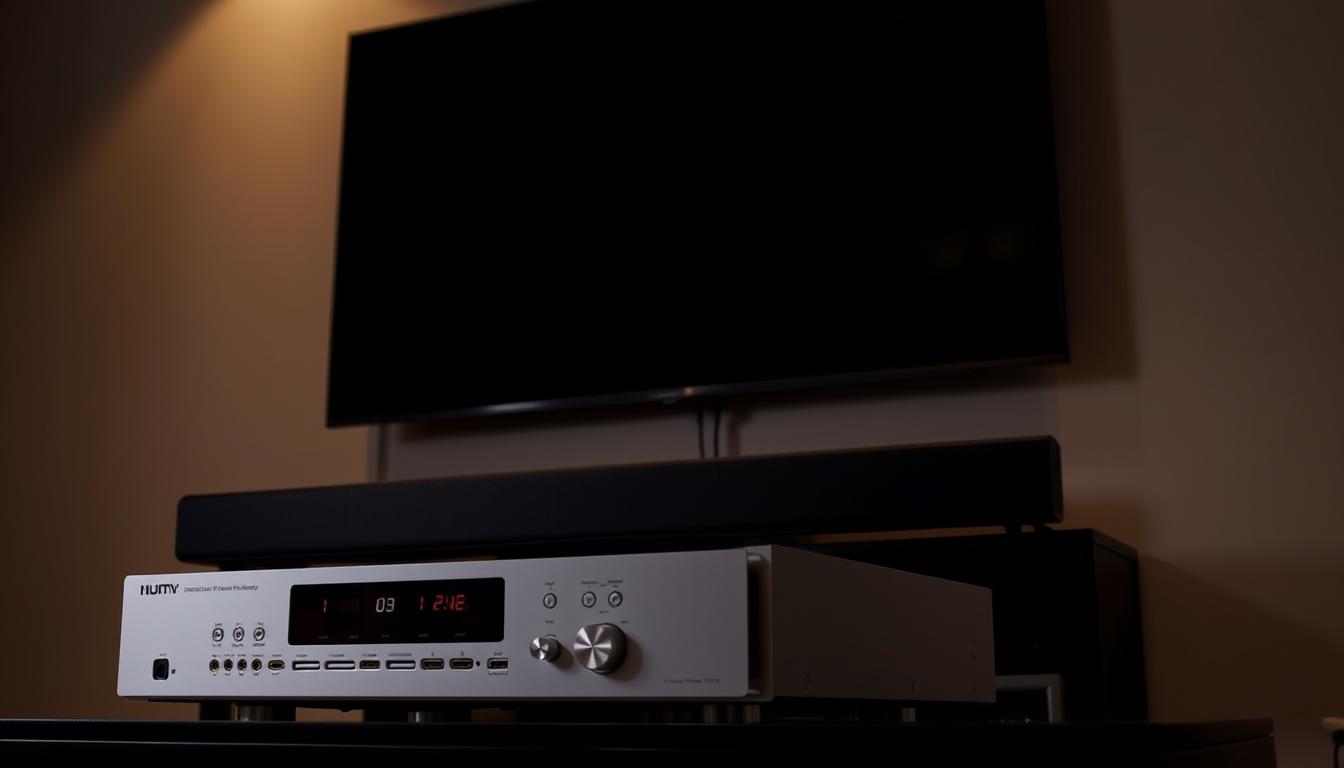
Using the TV as an HDMI Switch
Plug gaming consoles and streaming devices directly into your television’s HDMI inputs. Connect one ARC-enabled cable from the TV’s designated port to your sound bar or receiver. This approach simplifies operation through your TV remote.
Adjust volume and switch sources without juggling multiple controllers. Ideal for those with basic theater systems and limited HDMI input needs. Budget-friendly sound bars often thrive in this configuration.
Using a Receiver or Soundbar as the Central Hub
Premium setups benefit from routing devices through your receiver’s HDMI inputs first. Video signals pass through to the TV while audio stays localized. This method unlocks advanced formats like DTS:X that TVs might compress.
High-end receivers typically offer 6-8 HDMI inputs versus most sound bars’ 1-3 ports. Consider this table when planning connections:
| Setup Type | Devices Connected | Remote Control | HDMI Inputs Needed |
|---|---|---|---|
| TV-Centric | 4K Blu-ray, Fire Stick | TV Remote | 3-4 (TV side) |
| Receiver-Based | PS5, Apple TV, Cable Box | Receiver Remote | 5+ (Receiver side) |
“Centralizing control through your receiver preserves audio fidelity that TVs often strip away during passthrough.”
Test both configurations with your specific gear. Budget sound bars may struggle with multiple HDMI input demands, while premium receivers handle complex theater systems effortlessly. Your choice ultimately depends on audio priorities and daily convenience needs.
Understanding HDMI CEC and Remote Control Integration
Universal remotes feel outdated when your TV controller can manage multiple devices through one connection. HDMI’s Consumer Electronics Control (CEC) turns your television remote into a command center for sound systems and streaming boxes.
Activating CEC on Your TV and Connected Devices
Start by locating the CEC menu in your TV settings—often called System or External Devices. Manufacturers use different names for this feature:
- Samsung: Anynet+
- LG: SimpLink
- Sony: BRAVIA Sync
- TCL: CEC
Enable the setting on both your television and sound system. Many devices disable CEC by default to prevent accidental control conflicts. You’ll know it’s active when adjusting volume affects your soundbar instead of TV speakers.
| Manufacturer | CEC Name | Auto Power Feature |
|---|---|---|
| Samsung | Anynet+ | Turns on soundbar with TV |
| LG | SimpLink | Syncs input switching |
| Sony | BRAVIA Sync | Controls Blu-ray players |
| Vizio | CEC | Volume passthrough |
“CEC implementation varies wildly—always test basic functions like power and volume before relying on advanced features.”
If devices don’t respond, power-cycle your equipment. Unplug HDMI cables for 30 seconds, then reconnect. Update firmware through manufacturer websites for improved compatibility between brands.
Exploring eARC and Advanced Audio Formats
Ever wondered why premium home theaters deliver sound that wraps around you like a live performance? The answer lies in enhanced Audio Return Channel (eARC) technology. This HDMI 2.1 upgrade transforms how your system handles high-resolution audio, letting you experience content as creators intended.
Supercharged Bandwidth for Lossless Sound
eARC triples the data capacity of traditional ARC connections. Where standard setups compress Dolby Digital tracks, this new standard streams lossless Dolby TrueHD and DTS-HD Master Audio formats. You’ll hear subtle details—like rustling leaves or distant footsteps—that older systems flatten.
Mandatory lip-sync correction eliminates mismatched dialogue, while upgraded HDMI cables maintain signal integrity. Mid-range TVs from 2019 onward typically include eARC ports, making this tech accessible without full system replacements.
Cinematic Immersion Made Simple
Dolby Atmos takes surround sound to new dimensions. Instead of channel-based audio, it positions effects precisely in 3D space. Rainfall seems to hit your ceiling, while helicopters circle overhead. eARC’s bandwidth lets you take advantage of these object-based formats without quality loss.
Compared to legacy Dolby Digital 5.1, the difference feels revolutionary. DTS-HD Master Audio adds similar depth for Blu-ray enthusiasts. Both formats demand robust connections—exactly what eARC delivers through single-cable simplicity.
Best part? This technology works with existing ARC gear. Your system future-proofs itself while maintaining backward compatibility. Upgrade individual components over time without overhauling your entire setup.
FAQ
Why isn’t my ARC connection working after setup?
Check if both devices support ARC and use an HDMI cable labeled “High-Speed.” Ensure the HDMI port on your TV is ARC-enabled (often marked “HDMI ARC”) and enable HDMI-CEC settings like Samsung’s Anynet+ or LG’s Simplink.
Can I use ARC with older HDMI cables?
Older HDMI cables may lack bandwidth for ARC. For reliable performance, upgrade to a certified High-Speed HDMI cable. Avoid using cables older than HDMI 1.4 specifications.
Does ARC support Dolby Atmos or DTS-HD Master Audio?
Traditional ARC supports compressed formats like Dolby Digital. For Dolby Atmos or DTS-HD Master Audio, upgrade to eARC (Enhanced Audio Return Channel) and use compatible devices like Sony’s HT-A7000 soundbar.
How do I control volume with ARC using one remote?
Activate HDMI-CEC on your TV and sound system. This lets your TV remote adjust volume on ARC-connected devices. Brands like Vizio and Yamaha label this feature as “CEC” or “System Audio Control.”
Why does audio lag occur with ARC?
Latency often stems from mismatched audio processing between devices. Update firmware on your TV and soundbar. If issues persist, adjust audio sync settings in your device’s menu or switch to PCM audio mode.
Can I connect multiple devices through ARC?
ARC handles audio from the TV to one sound system. For multiple devices, connect them to your receiver’s HDMI inputs, then link the receiver to the TV via ARC. This setup centralizes audio through the receiver.
What’s the difference between eARC and ARC?
eARC supports higher bandwidth, enabling lossless audio like Dolby TrueHD and DTS:X. It also reduces latency and doesn’t require HDMI-CEC for audio syncing. Ensure your TV and soundbar, like LG’s OLED C3, support eARC.
Do all HDMI ports support ARC?
No. Only specific HDMI ports on TVs and receivers are ARC-enabled, usually labeled “HDMI ARC” or “HDMI eARC.” Consult your device manual—for example, Sony Bravia TVs often designate HDMI 3 for ARC.