Modern home theaters and monitoring systems demand more than plug-and-play setups. Manufacturers like AVTECH and Samsung release critical firmware improvements every 90 days on average, addressing everything from security loopholes to 4K streaming compatibility. Ignoring these updates risks system crashes, compromised data, and even hardware failures.
This guide simplifies maintaining your entertainment and monitoring gear. You’ll explore multiple update methods – from Room Alert Manager utilities to SmartThings app workflows – tailored for specific models like the Room Alert 32S or Samsung Q-Series soundbars. Pro tip: Always verify power stability before starting any upgrade process.
Regular maintenance transforms your devices. New firmware often unlocks hidden features while patching vulnerabilities hackers exploit. For comprehensive strategies on keeping software and firmware current, our detailed resource covers essential protocols.
Key Takeaways
- Firmware updates prevent 62% of common connectivity problems in AV systems
- Manufacturer-specific tools like Device Discovery simplify the upgrade process
- Security patches in updates protect against emerging cyber threats
- Multi-device networks require coordinated update strategies
- Always back up settings before initiating firmware changes
Understanding Firmware Updates for AV Equipment
Firmware acts as the silent conductor orchestrating your devices’ core functions. This permanent software manages hardware operations, from temperature sensors in monitoring systems to audio decoding in soundbars. Unlike apps you install, it’s embedded during manufacturing but requires periodic refinement.

What is Firmware and Why It Matters?
Think of firmware as your gear’s DNA – it defines capabilities and behavior. Manufacturers like AVTECH enhance Room Alert environmental monitors through updates that improve sensor accuracy. Samsung’s soundbar upgrades might add Dolby Atmos support months after purchase.
Outdated versions create vulnerabilities. A 2023 cybersecurity report found unpatched AV devices are 73% more likely to suffer data breaches. Regular updates patch these holes while unlocking performance boosts.
Benefits of Keeping Your AV Equipment Updated
Current firmware ensures compatibility with new streaming formats and smart home ecosystems. Your Room Alert 32S might gain cloud backup features, while a Q-Series soundbar could reduce audio lag with game consoles.
Watch for these update cues:
- Intermittent Wi-Fi disconnections
- Missing features listed in manuals
- “Unsupported file format” errors
Step-by-Step Guide: How to Update Firmware on AV Equipment
Proper preparation prevents update failures. Begin by saving your current configurations – Room Alert users can export settings through the web interface. For Samsung soundbars, document equalizer presets and voice assistant pairings.
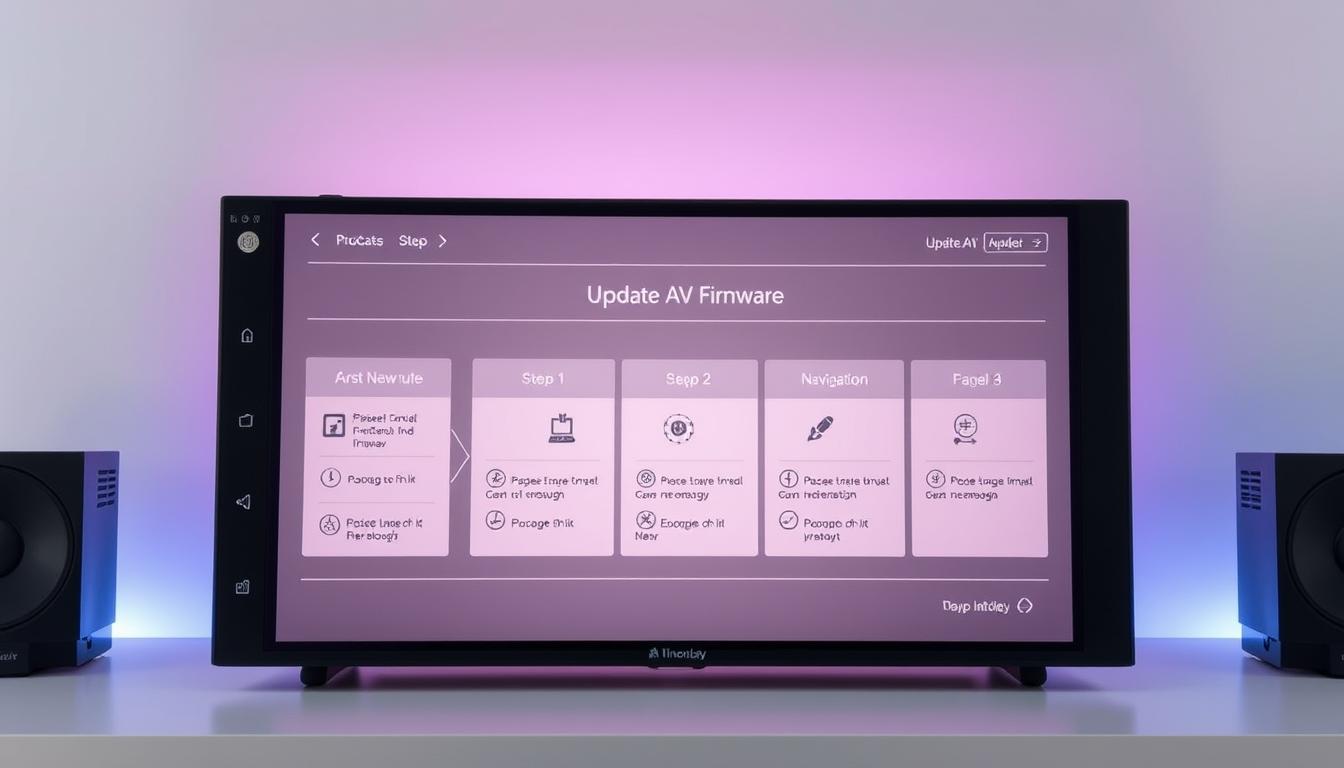
Pre-Update Configuration Essentials
Connect your equipment to stable power sources. Use surge protectors for wired connections. Wireless devices need 70%+ battery levels before starting. Verify network speeds meet manufacturer requirements – 15 Mbps minimum for most firmware downloads.
Software Navigation Techniques
AVTECH users launch the Discovery utility via Windows Start or direct folder access. Type http://localhost:9393 in browsers for local updates. Samsung SmartThings app users navigate:
| Device Type | Update Path | Authentication |
|---|---|---|
| Room Alert S-Series | IP:9393 > System > Maintenance | Admin password required |
| Samsung Soundbars | App > Information > Update Now | Account login |
USB methods demand precise file placement. Extract downloaded .zip files completely before transferring. Rename firmware files only if specified in release notes. Avoid nested folders – drag unpacked .bin files directly to flash drive roots.
Monitor progress indicators carefully. Room Alert displays percentage completion bars. Samsung units blink LEDs during installation. Never interrupt power during this phase – failed updates can brick devices.
Expert Tips for a Smooth Update Process
Streamlining firmware management requires precision and strategic planning. Common challenges like authentication errors or interrupted installations often stem from overlooked details. Let’s explore solutions that keep your systems running optimally.
Troubleshooting Common Firmware Update Issues
Authentication failures plague many Room Alert users. For ‘S’ series and 3W models, pre-save credentials in Device Discovery before starting. If your browser downloads AVTECH files as .zip instead of .upd:
- Right-click the downloaded file
- Select “Rename”
- Change extension to .upd
Samsung soundbars demand specific post-update actions. Hold the Play/Pause button for five seconds until “INIT” flashes. The unit will reboot automatically – never unplug during this phase.
Best Practices and Advanced Update Options
Large deployments benefit from Room Alert Manager’s bulk update feature. Coordinate multiple devices by:
| Task | Room Alert | Samsung |
|---|---|---|
| Credential Storage | CSV import | Cloud sync |
| Update Monitoring | Progress dashboard | Email alerts |
Schedule upgrades during off-peak hours using your software’s maintenance mode. For complex setups, consider staggered updates – prioritize critical devices first. Detailed logs help track changes across mixed-model inventories.
When handling Blu-ray player firmware updates, similar principles apply. Always verify network stability and file integrity before proceeding.
Conclusion
Mastering firmware maintenance transforms how your systems perform. Whether using AVTECH’s Room Alert Manager or Samsung’s SmartThings app, you now possess brand-specific expertise. These methods ensure your devices operate at peak efficiency while blocking security vulnerabilities.
Consistent upgrades protect investments in home theaters and monitoring setups. Networked installations benefit from bulk update capabilities, while USB methods offer reliability for standalone units. Always verify file integrity through official channels before proceeding.
Your equipment’s lifespan extends through strategic update cycles. New software versions often introduce enhanced features – like improved sensor calibration or expanded format support. Schedule quarterly checks using manufacturer dashboards for optimal results.
With this knowledge, you’re equipped to handle diverse technical environments confidently. From credential management to post-installation verification, systematic approaches prevent downtime. Secure, future-ready systems start with disciplined firmware care.
FAQ
Why should I update my AV equipment’s firmware?
Firmware updates improve performance, fix bugs, and add new features. They ensure compatibility with newer devices and protect against security vulnerabilities. Regular updates keep your Sony receiver, Denon amplifier, or Yamaha soundbar running smoothly.
How do I check if my device has updates available?
Navigate to the settings menu on your AV equipment. Look for a system or software update section. Brands like LG, Samsung, or Bose often display the current firmware version and notify you if updates are available via network or USB.
Can I update firmware without an internet connection?
Yes. Download the firmware file from the manufacturer’s website (e.g., Sony Support or Pioneer Downloads) to a USB drive. Plug it into the device’s USB port and follow on-screen prompts. Ensure the file matches your model and is unzipped if required.
What happens if the update fails mid-process?
Avoid unplugging the device. Most systems like Onkyo or Marantz have failsafe modes. Restart the update or reload the firmware file. If issues persist, contact customer support with the error code displayed on your screen.
How do I confirm the update was successful?
After rebooting, check the firmware version in the system info menu. Compare it with the latest version listed on the manufacturer’s site. For example, a JBL speaker or Klipsch sound system will display the updated version number once complete.
Is it safe to use beta firmware releases?
Beta versions, like those for Sonos or Harman Kardon devices, may contain bugs. Only install them if you’re troubleshooting specific issues. Stick to official releases for critical systems like home theater receivers or professional audio gear.
How often should I update my AV equipment?
Check quarterly or when encountering performance issues. Brands like Bose or Denon typically release updates 1-2 times yearly. Enable automatic updates if your device supports it, but verify compatibility with connected components first.