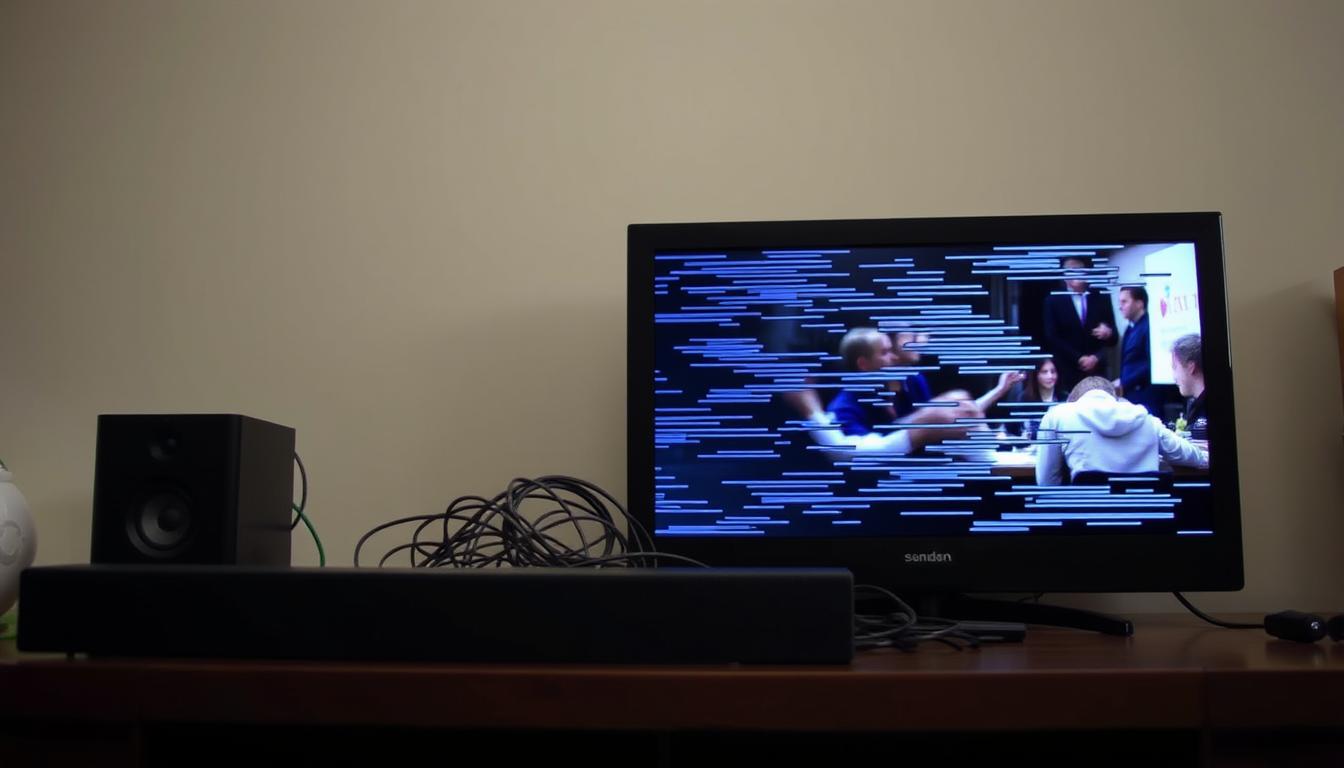

Over 43% of home theater users report distorted dialogue timing during critical movie scenes, according to Consumer Technology Association research. This widespread frustration stems from technical handshake failures between modern entertainment components. Samsung audio expert Allan Devantier explains: “High-bitrate formats demand intense processing that varies between devices.”
When watching Dolby Atmos content, your television and speaker system perform separate decoding tasks. The TV handles video rendering while the soundbar unpacks layered audio tracks. Without synchronized clocks, these processes finish at different speeds. Imagine actors delivering lines seconds after their mouths move – a jarring experience that ruins immersion.
Advanced features compound the problem. Motion smoothing adds frames to video streams, while virtual surround sound expands audio landscapes. Both enhancements require extra milliseconds of processing that rarely align perfectly. Multi-channel formats like DTS:X amplify timing discrepancies through complex signal pathways.
Key Takeaways
- Premium audio formats demand unequal processing times across devices
- Video enhancements often outpace sound system capabilities
- Brand compatibility gaps worsen synchronization challenges
- High-definition content magnifies timing mismatches
- Automatic correction systems frequently miss ideal calibration
Understanding Audio Delay and Lip-Sync Issues
Your entertainment setup operates like two musicians playing separate scores. High-definition content delivery creates a hidden race between sight and sound. Every frame and audio sample travels through intricate digital pathways requiring precise coordination.

The Hidden Workload Behind Entertainment
Modern audio video processing involves multiple decoding stages. Your TV converts compressed video streams into visible images while your speaker system unpacks layered sound formats. These parallel tasks rarely finish simultaneously. Research shows video decoding takes 30-50% longer than audio conversion in most setups.
Dolby Atmos and DTS:X tracks demand extra processing milliseconds compared to basic stereo. “Multichannel formats essentially create 3D sound maps that require spatial calculations,” explains Samsung’s audio team. This complexity grows when streaming platforms use variable bitrates that change mid-scene.
Root Causes of Timing Discrepancies
Three primary factors disrupt synchronization:
- Brand-specific processing algorithms that don’t communicate
- Physical media vs streaming service encoding differences
- Automatic delay compensation optimized for same-brand devices
Blu-ray players often process digital audio faster than streaming boxes. When paired with mismatched sound systems, these micro-delays accumulate. Netflix’s dynamic compression adds another variable, sometimes altering timing between episodes.
Manufacturers face immense challenges creating universal solutions. Your system’s video processing capabilities might refresh images faster than its audio components can keep pace. These mismatches become glaring during rapid dialogue exchanges, where lips move without matching sounds.
Effective Troubleshooting Steps for Audio Sync
Addressing synchronization problems requires methodical troubleshooting. Start with basic hardware checks before diving into complex configurations. This approach helps isolate common culprits while avoiding unnecessary adjustments.

Resetting Devices and Inspecting Cable Connections
Power cycling remains the first line of defense. Turn off your television and speaker system using their remote controls or physical buttons. Unplug all power cords for 60 seconds to clear residual electricity. This reset often resolves temporary memory conflicts causing mismatched outputs.
Examine every HDMI cable and optical connection. Look for bent pins, frayed insulation, or loose ports. Swap suspect cables with known working alternatives – a damaged wire can introduce timing errors even if partially functional. Ensure secure connections at both ends, as vibration from bass-heavy scenes sometimes loosens plugs.
Adjusting TV and Soundbar Settings for Optimal Performance
Navigate your television’s settings menu using the directional pad on the remote. Locate “Audio Output” options and experiment with different modes. Sony X90J owners resolved delays by switching from “Auto 1” to “Auto 2”, demonstrating how preset configurations affect synchronization.
Check for pending firmware updates in the “System” section. Manufacturers frequently release patches improving device compatibility. After updating, revisit audio settings to confirm optimal configurations. Many soundbars offer companion apps providing granular control over processing delays – explore these tools for brand-specific adjustments.
Advanced Synchronization Solutions for Modern Setups
Modern entertainment systems require precise coordination between components. These three strategies help align visual and auditory elements without compromising quality.
Precision Timing Controls
Newer Samsung Q-series models (2020+) feature bidirectional delay controls in their soundbar settings. Access this through your TV’s audio menu under “Sync Adjustments.” Older systems often only let you slow down sound, but updated firmware can sometimes enable two-way corrections.
For LG and Sony setups, navigate to “Advanced Audio” > “Manual Sync.” Use test patterns from streaming services to match dialogue with lip movements. Make 10ms incremental changes until voices align perfectly with facial expressions.
Format Optimization Techniques
Switching to PCM output reduces decoding delays by letting your television handle sound processing. This change maintains synchronization but impacts surround capabilities. Compare format differences:
| Format | Delay | Channels | Quality |
|---|---|---|---|
| Dolby Digital | 120ms | 5.1 | High |
| PCM | 45ms | 2.1 | Medium |
| Bitstream | 150ms | 7.1 | Highest |
Disable virtual surround modes and dialogue enhancers in your soundbar’s companion app. These features add 80-100ms processing time that disrupts synchronization.
Connection Pathway Adjustments
Route gaming consoles and streaming boxes through your speaker system’s HDMI input first. This method lets the soundbar process audio simultaneously with video passthrough. Most budget models only have one input – use an HDMI switcher for multiple sources.
Smart TV apps still require separate synchronization since they bypass external devices. Create custom audio profiles for built-in streaming services to compensate for this limitation.
Conclusion
Crystal-clear synchronization transforms movie dialogues into lifelike conversations. Modern entertainment systems thrive when visual and auditory elements operate as unified partners. The TCL P755 demonstrates this harmony through Dolby Atmos processing and a 120Hz refresh rate, tackling complex scenes without lag.
You’ll achieve lasting results by pairing smart equipment choices with strategic configurations. Premium TVs with dedicated audio processors like AiPQ handle both rapid motion and layered sound formats simultaneously. This dual capability prevents mismatches before they occur, unlike reactive troubleshooting methods.
For existing setups, detailed synchronization solutions combine cable upgrades with format optimization. Many users overlook simple fixes like switching to PCM output or updating firmware – adjustments that often resolve subtle timing conflicts.
When every explosion’s rumble matches on-screen debris and whispered dialogues stay perfectly timed, your viewing experience reaches cinematic heights. Invest in components designed for synchronization, and let advanced technologies handle the precision work behind the scenes.
FAQ
Why does audio sometimes fall out of sync with video?
Mismatched processing speeds between TVs and soundbars often cause delays. Video processing can take longer than audio transmission, especially with advanced formats like Dolby Atmos. Connection types, outdated firmware, or incorrect settings may also contribute.
How do I check if my HDMI cable is causing sync problems?
Test with a certified HDMI 2.1 cable that supports enhanced audio return channel (eARC). Ensure it’s firmly connected to both devices. Replace older cables or those showing wear, as damaged wires can disrupt signal timing between components.
Can adjusting TV settings resolve lip-sync issues?
Yes. Navigate to your TV’s audio settings and disable any “motion smoothing” or “video enhancement” features. Enable “Passthrough” or “Bitstream” modes to let the soundbar handle decoding, reducing processing delays from the TV’s internal systems.
What role do audio formats play in synchronization?
Compressed formats like Dolby Digital may sync better than lossless formats (e.g., Dolby TrueHD) on some systems. Experiment with format priorities in your device’s digital audio output settings. Disable unnecessary surround sound processing if synchronization struggles persist.
How do I manually adjust delay settings on a soundbar?
Use your soundbar’s remote or companion app to access audio delay or lip-sync correction menus. Adjust in 10-20 millisecond increments while playing video content. Many Samsung and Sonos models include auto-sync tools that simplify this process.
Should I connect streaming devices directly to the soundbar?
Routing devices like Apple TV or Roku through the soundbar’s HDMI input often improves sync. This allows the soundbar to process audio/video simultaneously before sending the video signal to the TV, reducing potential timing mismatches.
